Setting Up Your Mod Assets
When creating your mod, it is absolutely essential that ALL content is placed in your mod folder. If it is placed into the Content folder, it will be left behind not get included with your build. While you were creating your mod we have been asking you to create your assets in your Mod folder, and please doublecheck everything has been correctly put in there.
Additionally, if you have edited any base game content in any way, you must copy it and put it into your Mod folder. Things like editing a base game food item or quest item, editing shaders, or changing meshes, all need to be moved over.
This tutorial will show you how to safely move mod assets if you accidentally placed them into the Content folder.
Step 1: BACKUP YOUR MOD
We will be moving assets around, and Unreal is not great at moving assets safely. Make a BACKUP of your mod and put it into a different location, or ideally on a different hard drive.
Step 2: Move Assets
- First unload your map if you are working on a map. You can do this by opening a different map like
MechanicsTestMap. - Grab the item you want to move, and drag it into the relevant location inside your mod folder.
- Do this for all other items that you need in your mod folder.
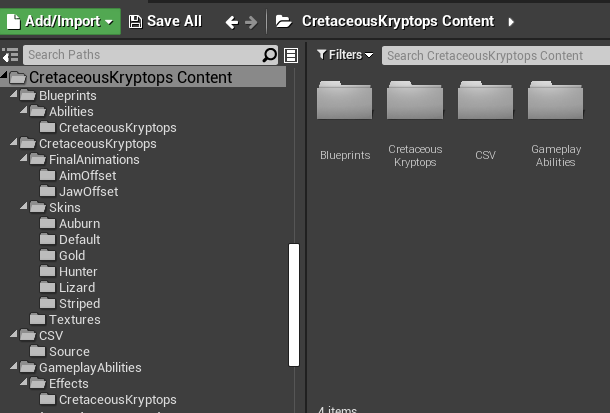
Set up your mod folder using this same format as shown below. If you are creating a maps, add a Maps folder at \Maps
Step 3: Fix Up Redirectors
When you move stuff in Unreal, it will often create a redirector to the moved object. These will cause problems with your mod and cause your build to fail.
- Right click on the Content folder and select "Fix Up Redirectors in Folder"
- Right click on your mod folder and select "Fix Up Redirectors in Folder"
- For both of these, you may get a loading screen as it loads and fixes any redirectors.
- You can also add a filter in your Content Browser via
Filters > Other Filters > Show RedirectorsThis will show redirectors as a grey entry next to your files. Make sure to keep an eye out for any redirectors and fix them up whenever you see them.
Summary
If you have followed this tutorial, you should now have:
- Moved all your mod files over to your Mod folder
- Double checked your redirectors were fixed up and all references worked.
Congrats! You can now move on to the next step.