Animation Blueprint
The Animation Blueprint (ABP) is the logic that powers your creature's animations and animation blending. It is a complicated item to set up, so please follow the steps carefully.
Step 1: Retarget a Base Game Dinosaur Animation Blueprint
While it is possible for you to create an Animation Blueprint from scratch, it is so complicated that it's way easier to just use one from a base game dinosaur. We will retarget the Animation Blueprint from a base game dino, and then swap out all it's animations to use your creatures animations.
If you do not wish to retarget the animation blueprint and dinosaur animations, you will have to create one from scratch. This is a long process, and will require you to create a new animation blueprint using your skeleton, and copy everything from our Animation Blueprint over to yours. There is no automated way to do this, and you will have to carefully cross-reference between your blueprint and ours. It’s highly recommended to retarget an existing animation blueprint.
- Look through the base game dinosaurs and find the dino that is closest to your creature. For example, if you were creating a Parasaurolophus, you would want to use the Lambeosaurus Animation Blueprint.
- Set up your creature to use the rig of your selected base game dinosaur. Learn to do that in this tutorial.
- Right click on the base game dinosaurs Animation Blueprint (the orange file called
ABP_DinoName) and selectRetarget Anim Blueprints > Duplicate Anim Blueprints and Retarget - The “Select Skeleton” window will appear. Select the skeleton of your creature from the left-hand panel and click the “Change…” button on the bottom right of the window to change the location the animation will be saved to.
- Select the “Animation” folder found within your creature’s mod folder, and click OK
- Then, select the “Retarget” button to begin the retargeting process. Dozens of animations will be retargeted over to your animation folder, including the orange Animation Blueprint.
- Rename your retargeted animation blueprint
ABP_CreatureName - Some of the animations may look off, or strange, but this isn't a huge deal because we will eventually be deleting those as you replace them with your animations.
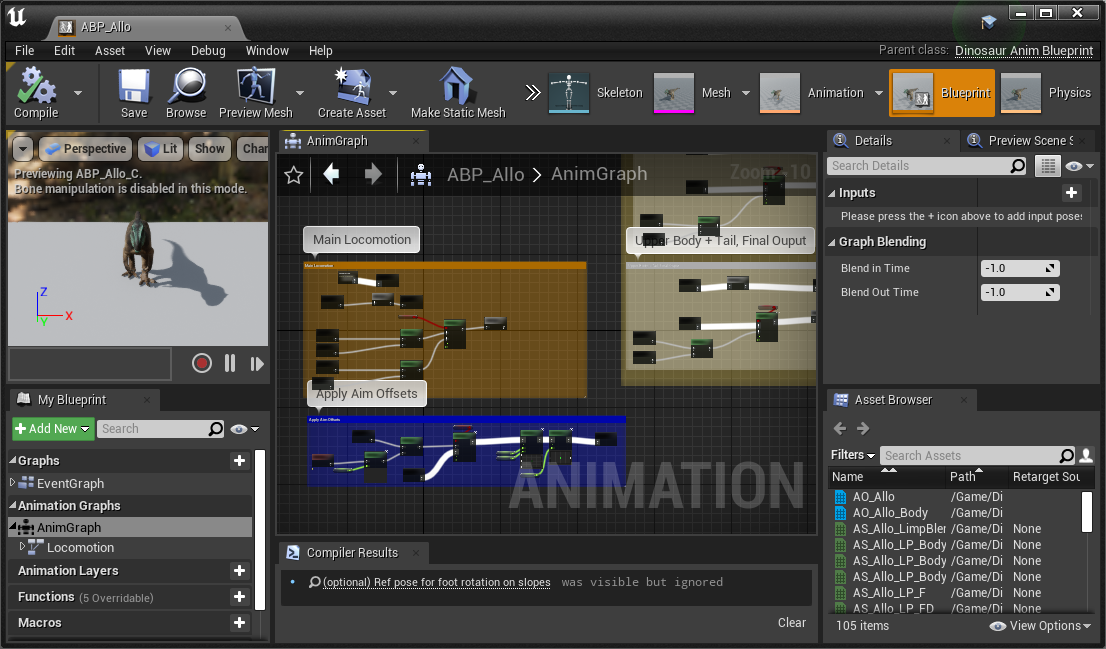
Step 2: Replacing Animations in the Animation Blueprint
The animation blueprint references a large number of animations. You must go through them and replace them with your preferred animations. There are many places to look for them, and this section will show you all the relevant locations.
AnimGraph
- Double click on the animation blueprint to open it and open the AnimGraph (on the left)
- Inside here you will find many colour-coded boxes that reference some animations. Most importantly there are Animation Blendspaces you must swap out, and Animation Sequences.
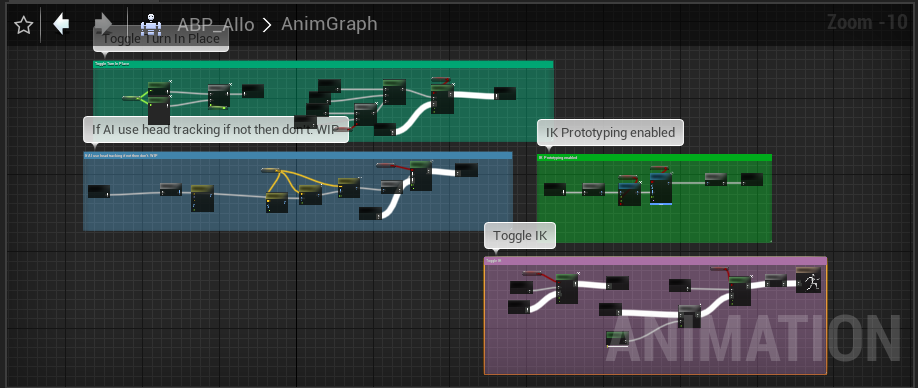
Locomotion Machine
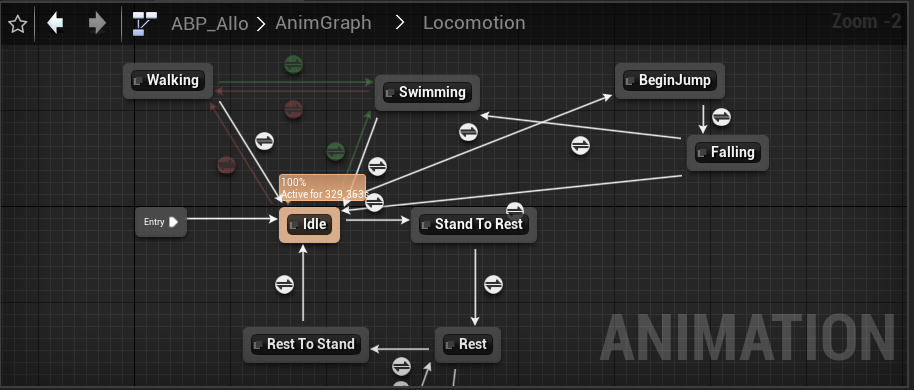
- Open the "Locomotion" tab under the Animation Graphs tab on the left
- Inside here you will find a flow chart of all the movement states your creature can be in. Double click on these states to open them and slot in your updated animations.
Summary
Following this tutorial you will have:
- Retargeted a base game dinosaurs Animation Blueprint
- Swapped out all the animations found in the Animation Blueprint to your preferred animations
Congrats! You can now move on to the next step. Back to tutorial.