Setting Up Abilities and Attacks
Creating New Abilities with the AbilityEditor
To easily create new abilities, you can use the AbilityEditor tool. This tool will set up a basic attack with all the stats assigned, so you can go in and edit stats and assign different effects.
- Open the AbilityEditor. Learn how to use the AbilityEditor here.
- Select your creature from the dropdown menu.
- Type in a new ability name (Ex. Bite, Headbutt, Tail Attack) and click “Create”.
INFO
The files will be created INSIDE the Content folder, and will update the files inside the CSV folder in Content
- This will create the basic ability. You can open the new ability selecting it and clicking "Edit"
Editing Abilities
When an ability is created, it will automatically be generated and placed into Content\Blueprints\Abilities\CreatureName. Click edit on your ability to change the stats, animations, etc.
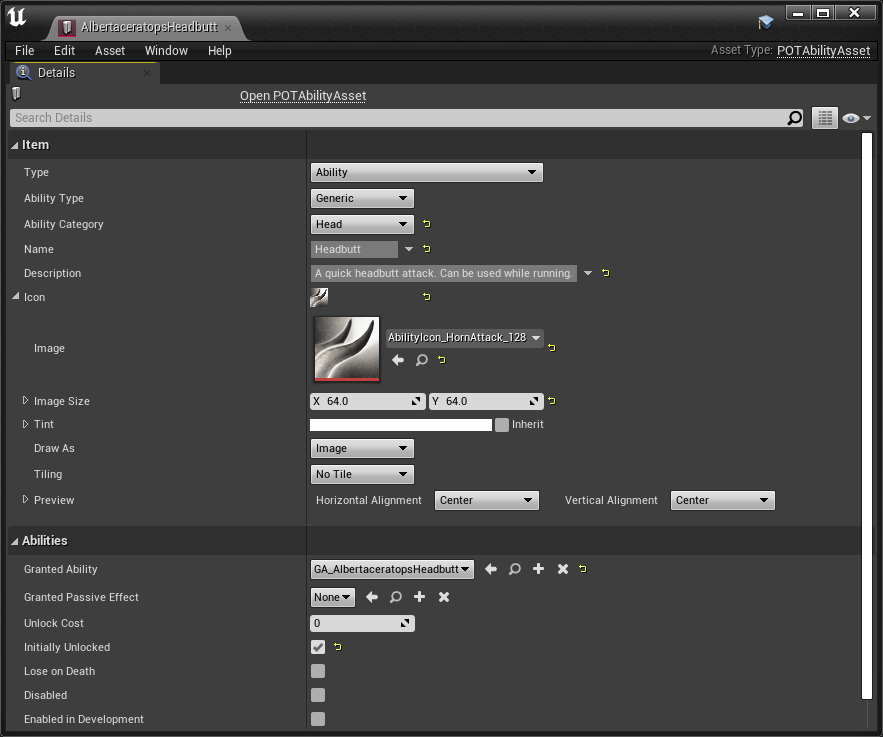
The following table explains each item found in the AbilityAsset.
| Item | Description |
|---|---|
| Type | The type of data asset this is. Must be set to Ability or else it will break. |
| Ability Type | Must be set to Generic |
| Ability Category | The slot this ability will use. It is important to assign these correctly so players can access and assign the abilities intuitively. |
| Name | The ability name |
| Description | The ability description that players can read before unlocking the ability. |
| Icon | The ability icon |
| Image Size | The size of the icon. Must be set to 64x64 |
| Tint | The tint of the icon. Highly recommended to leave this white. |
| Draw As | Leave as "Image" |
| Tiling | Leave as "No Time" |
| Preview | Leave as defaults. |
| Granted Ability | Slot the Gameplay Ability into here if your ability uses one. This is used for attacks. |
| Granted Passive Effect | Slot the Gameplay Effect into here if you ability uses one. This is generally used for passive effects like Diets, Stat Buffs, and Dive/Jump abilities. |
| Unlock Cost | How many marks are required to unlock the ability. 0 means the ability will be free. |
| Initially Unlocked | Whether or not the ability is automatically unlocked. This should be used on the default ability that you creature starts with, like a Bite attack or a Hypercarnivore diet. |
| Lose on Death | Check this box if you want this ability to be lost when the player dies. They will have to re-unlock the ability when they respawn. |
| Disabled | Disables the ability so players cannot access it. Useful if you need to temporarily remove an ability but don't want to delete it. |
| Enabled in Development | Ignore. |
Adding Damage Hitboxes
Step 1: Add "Do Damage Notify" to Animation Montage
- Right click your creature's attack animation and select
Create > Create AnimMontage - Name the Animation Montage "AM_CreatureName_AttackName", for example
AM_Allosaurus_TailAttack - Open the Animation Montage.
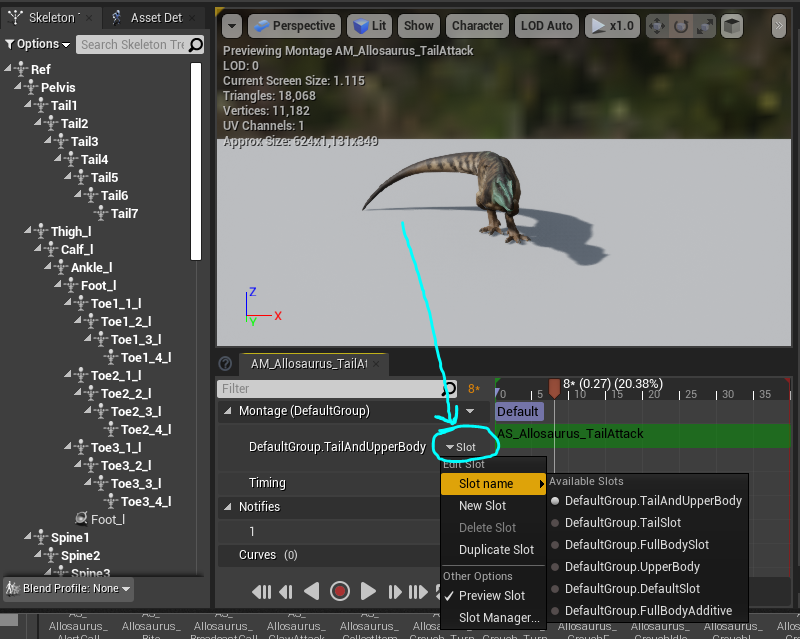
- Underneath the "Montage (Default Group) section, click the dropdown and change the Slot Name to the most relevant option as listed below.
| Slot Name | Description |
|---|---|
| TailAndUpperBody | Overrides the upperbody and tail, use for tail attacks. |
| TailSlot | Only overrides tail. |
| FullBodySlot | Overrides every bone in the body. Only use for eating/drinking animations, or animations that are used when standing still. |
| UpperBody | Overrides the upperbody, useful for claw, bite, and headbutt attacks. |
| DefaultSlot | Do not use. |
| FullBodyAdditive | Use for hit and landing animations, not for attacks. |
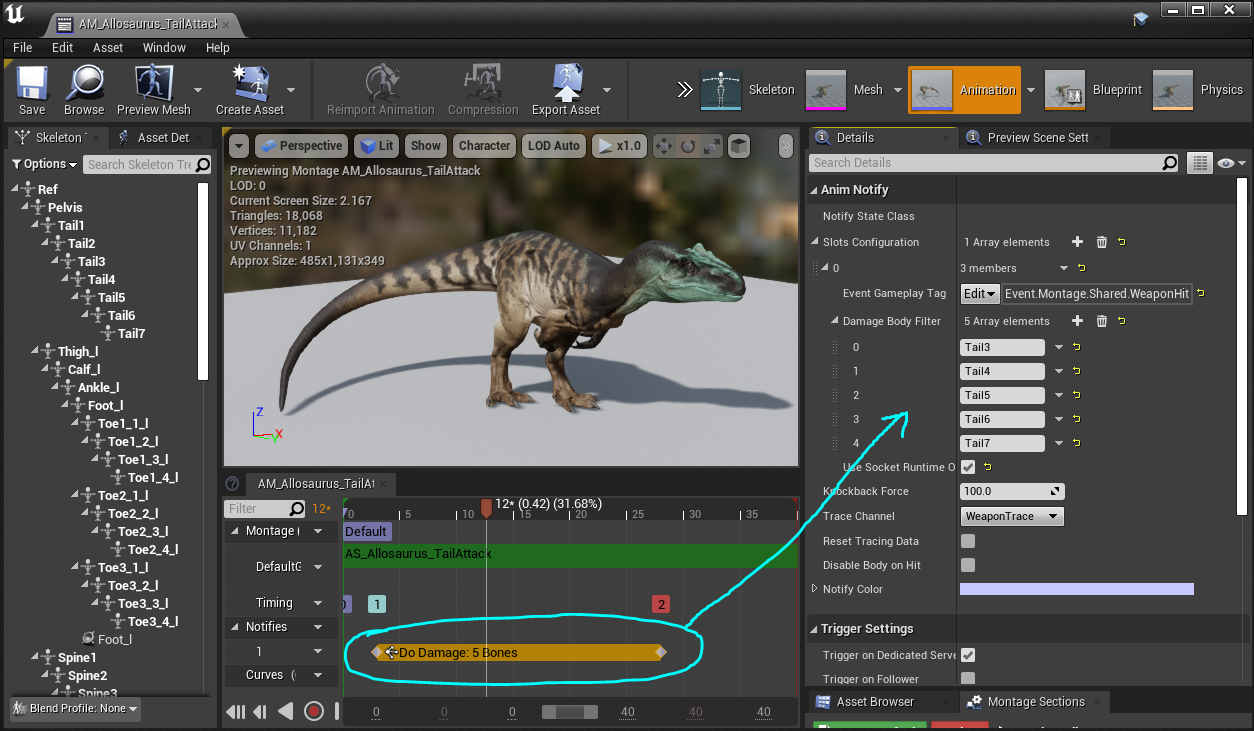
- Next, right click on your Notifies track, and select
Add Notify State... > Do Damage - Select the notify you just created and look at the Details panel.
- Under "Slots Configuration" add an entry for the "Damage Body Filter" for every bone that will do damage during this attack. The bone names MUST BE EXACTLY the same name as the ones in your skeleton!
- On the Animation Graph, drag out the ends of your Notify to specify how long the bodies will actively do damage.
Step 2: Add Attack Montage to Combat Gameplay Ability and Compile
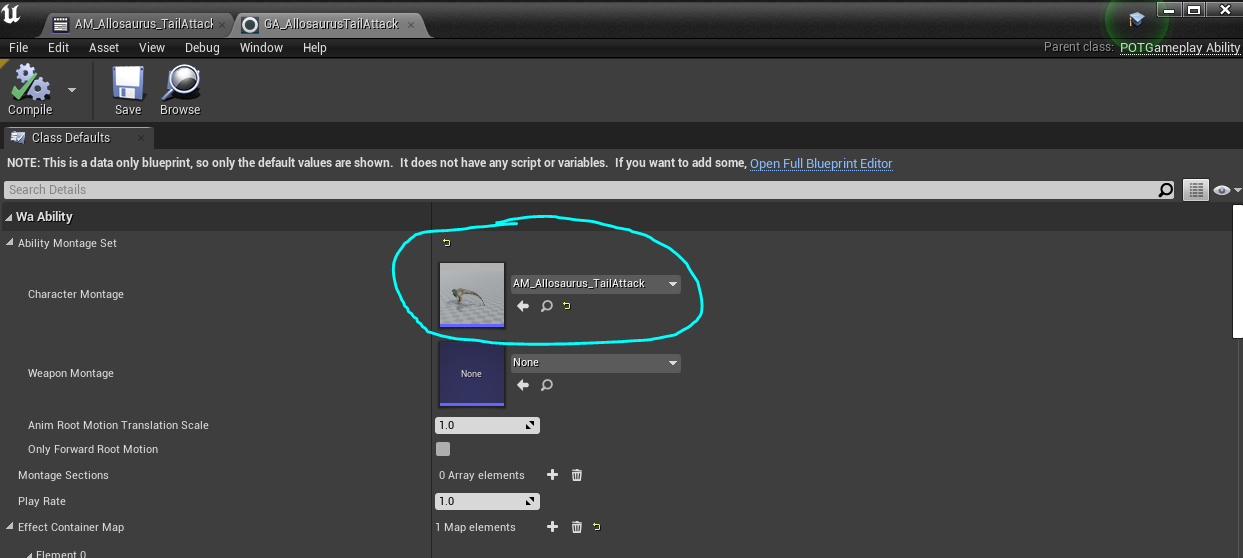
- Open your Gameplay Ability used for your attack. This should have been automatically generated when you created the attack via the AbilityEditor tool.
- Slot in the Attack Montage and click "Compile". The Blueprint will automatically compile to use the bones you specified. If you ever change the bones in your attack, be sure to recompile the attack Gameplay Ability again.
Step 3: Add Damage Bodies to Creature Blueprint
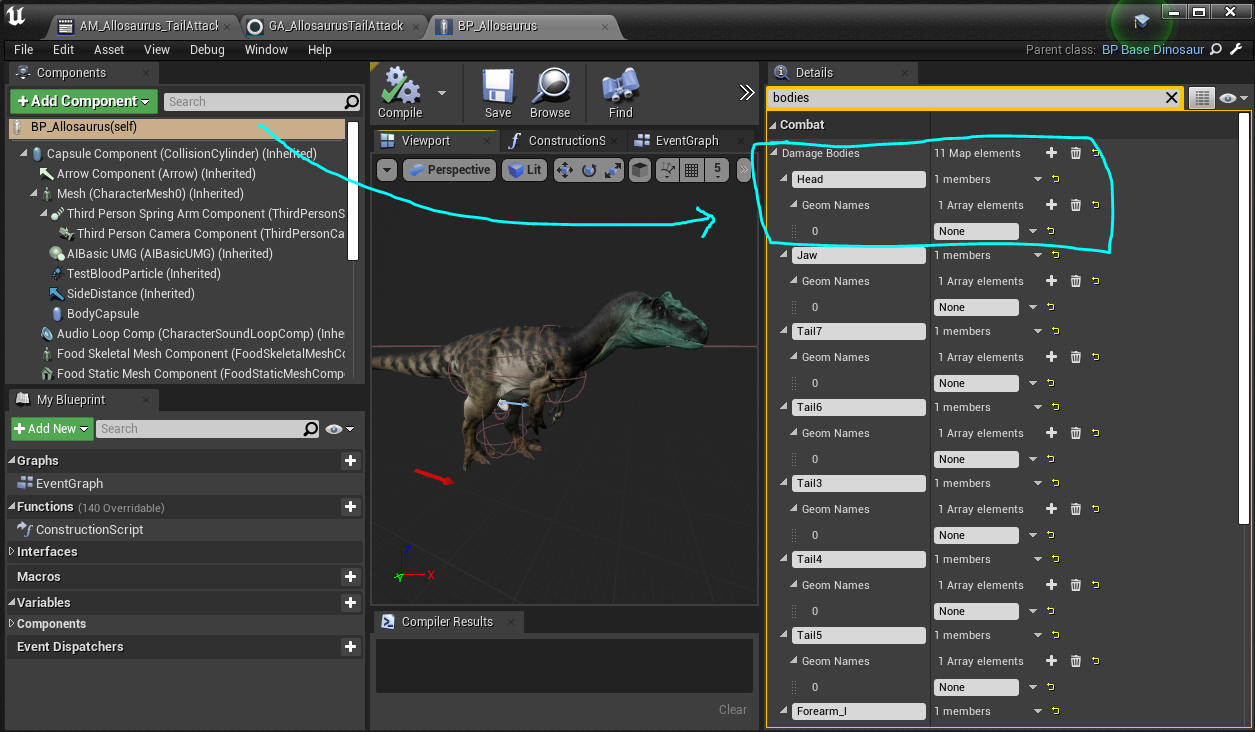
- Open your creature's Blueprint and search for "Bodies" in the search box.
- Add a new entry for every bone your creature uses in its attacks. Ensure all the bones that you use in your creatures attacks are also in the
Damage Bodieslist.
Adding/Adjusting Attack Cooldowns
- Open the
_CooldownGameplay Effect that was automatically created when you created the attack via the AbilityEditor tool. - Change the cooldown amount via the associated
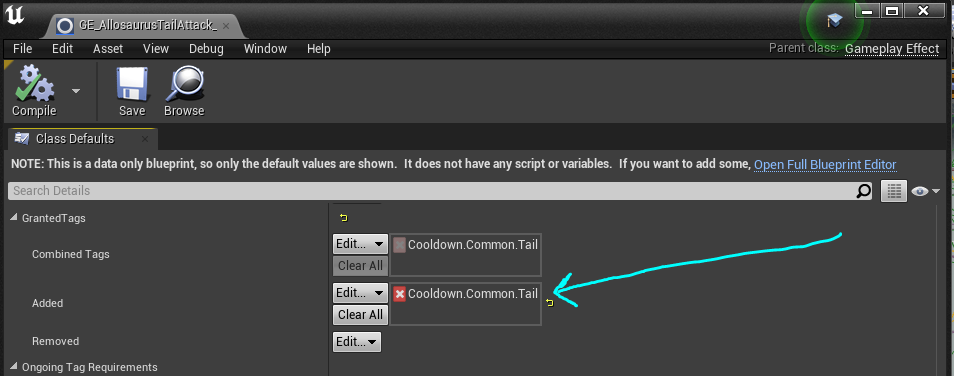
Scalable Float Magnitude. This likely can be found in yourCombat.csvfor your creature. - Add a cooldown GrantedTags to your Gameplay Effect. Under
Added, click "Edit" and add a tag that most closely matches the attack type you are currently editing.
Summary
By following this tutorial, you have completed the following:
- Used the AbilityEditor Tool to create an ability.
- Added Damage hitboxes and cooldowns the the ability.