Adding Home Caves
Home Caves are a type of individual player housing that can be visited by entering special caves found on Panjura. Entrances are marked by blue triangular icons on your map. Either enter through the dark tunnel or interact with the Home Cave stone to visit your cave. While they aren't essential on your map, and your map will technically function fine without them, we highly suggest adding them to your map so players can access personal player housing.
TIP
Server hosts can disable Home Caves via a server configuration option, so if they don't like them they have the power to remove them. However, server owners cannot ADD Home Caves to your map. For this reason even if you don't want to use Home Caves, we suggest adding Home Caves anyways, to give players more flexibility and options.
Watch the video tutorial of how to add Home Caves here:
Step 1 - Adding Home Cave Tunnel
- Make sure you are on the relevant sublevel where you will place your home cave.
- Place your tunnel mesh that players will go through in order to enter their Home Cave. Make sure it is blocked off at the end in case players accidentally run through the teleport volume.
- Place a HomeCaveEnterVolume into your tunnel. Find it at
Content\Blueprints\Caves\MapCavesand look forBP_HomeCaveEnterVolume. - Scale the volume to make sure it completely covers your home cave entrance tunnel.
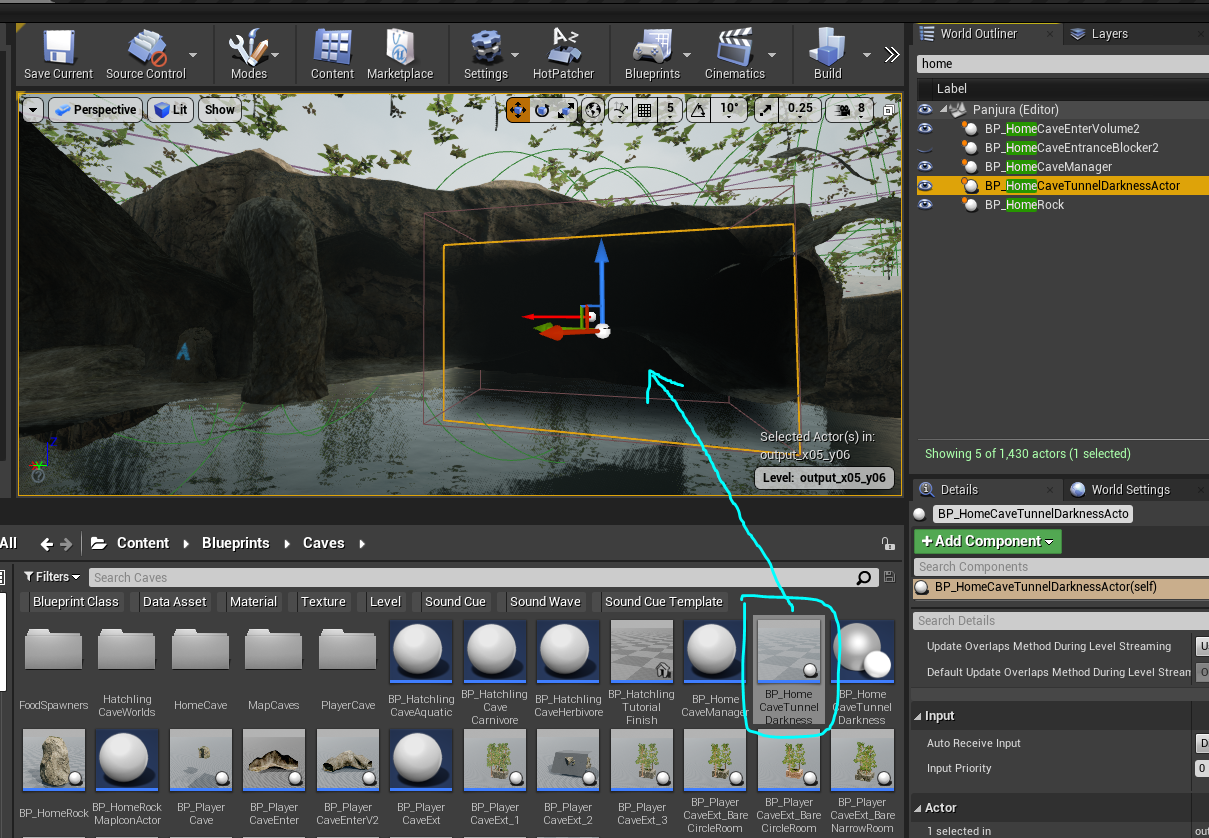
- Optionally, you can place a HomeCaveTunnelDarknessActor at the entrance which will make the tunnel look black. You can find it at
Content\Blueprints\Cavesand look forBP_HomeCaveTunnelDarknessActor. Make sure this is also placed on the sublevel.
Step 2 - Add Home Cave Stone
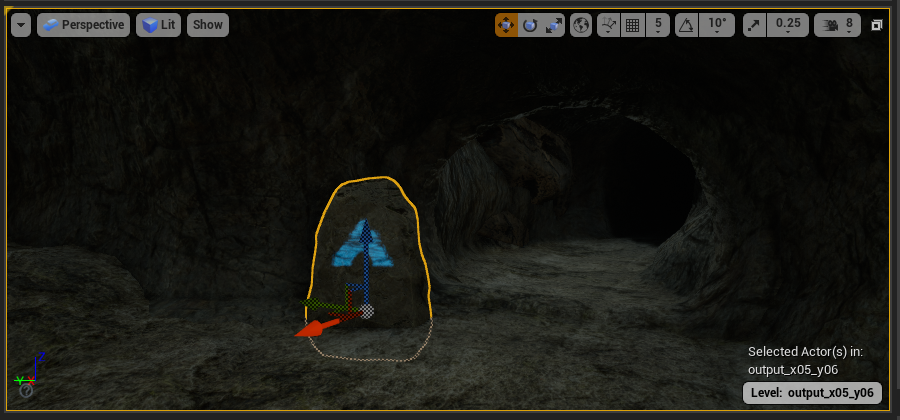
Place your Home Cave Stone at the entrance of you Home Cave tunnel so players can activate it to invite friends and teleport into their home cave.
- Go to
Content\Blueprints\Cavesand look forBP_HomeRockand place it onto your map. Make sure this is also placed on the sublevel. - Do this for all home cave locations you want to add to your map, and ensure it's on the corresponding sublevel.
Step 3 - Adding Home Cave Manager
Home Caves require a Home Cave manager to function. We need to place one into your persistent level.
- Select your persistent level.
- Go to
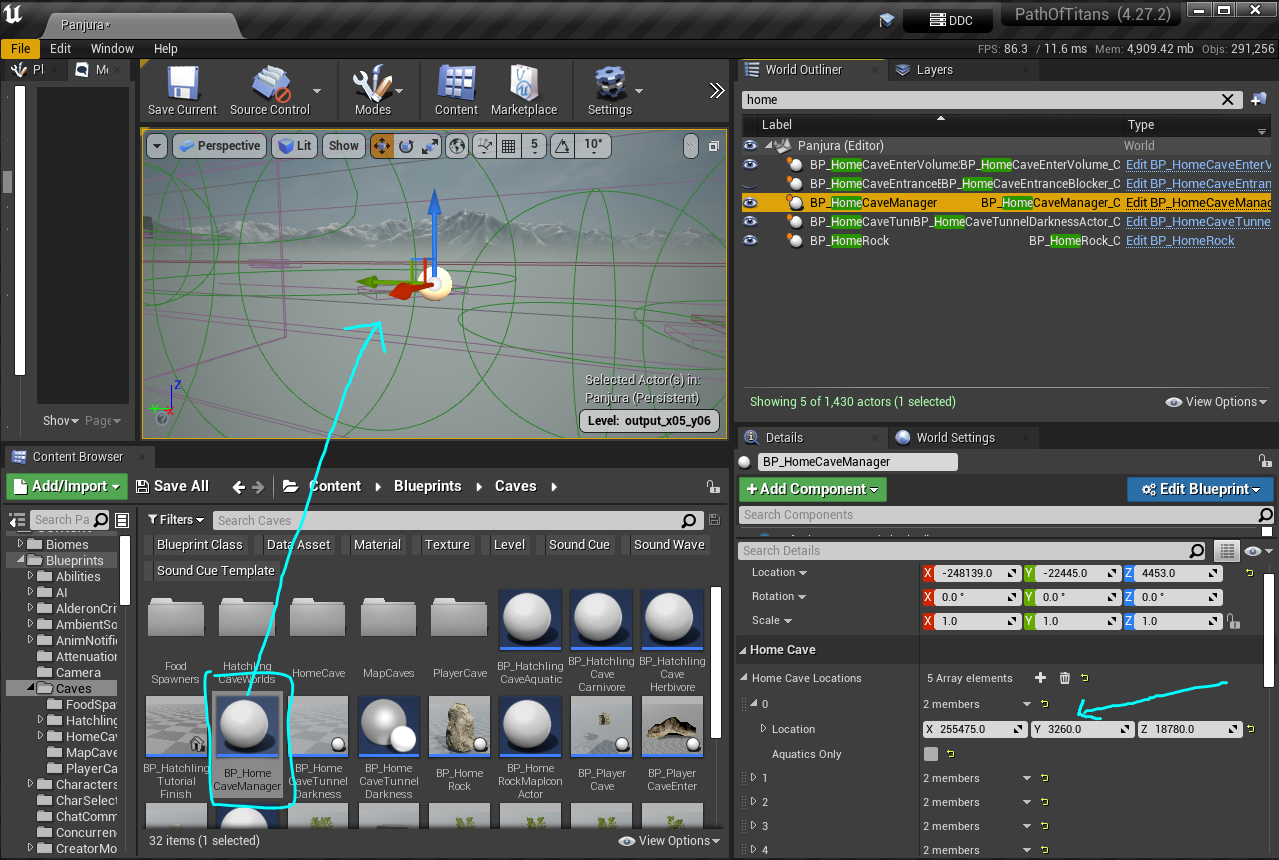
Content\Blueprints\Cavesand look forBP_HomeCaveManagerand place it onto your map. Make sure this is placed on the persistent level. - Load all your map tiles that contain Home Caves.
- Select the HomeCaveManager and go to its Details Panel.
- Create a new entry on the
Home Cave Locationssection and copy + paste the coordinates in for each of your Home Cave stones. - Tick off "Aquatics Only" on the Home Cave Location entry if it is a home cave that is underwater or in an area that can only be accessed by aquatic creatures.
- Go to your World Settings and assign in your
BP_HomeCaveManagerinto the Home Cave Manager slot.
Step 4 - (Optional) Adding Home Cave Entrance Blocker
If a server owner disables Home Caves, they likely won't want a home cave tunnel that leads to nowhere on the map. In order to fix this, you can add a Home Cave Entrance Blocker to your level. The blocker will be invisible when Home Caves are enabled, and visible when Home Caves are disabled.
- Go to
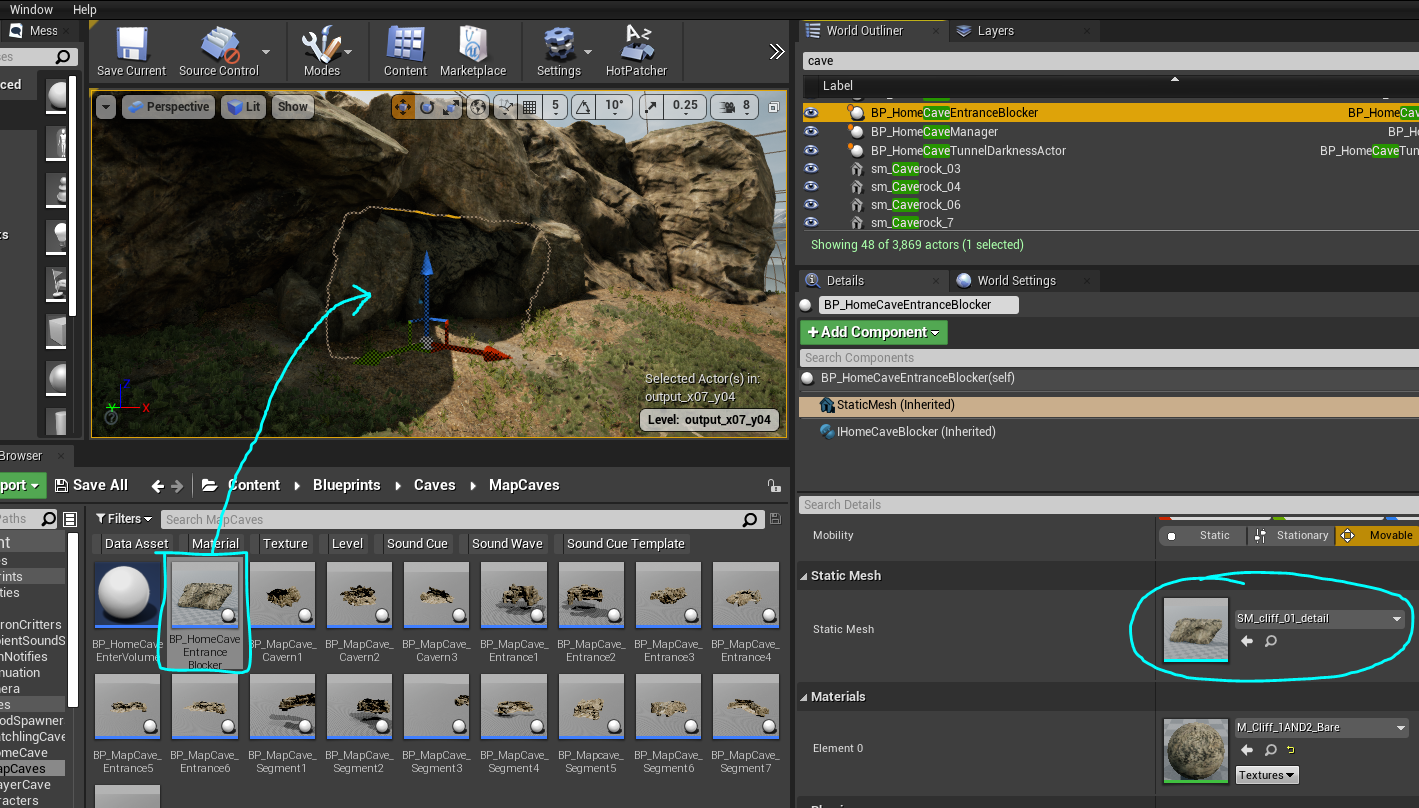
Content\Blueprints\Caves\MapCavesand drag the BP_HomeCaveEntranceBlocker onto the same sublevel your home cave is on. - Move the blocker to cover up the home cave entrance completely so that a player wouldn't be able to walk through it.
- Tip: you can change the mesh used in the blocker by clicking on the BP_HomeCaveEntranceBlocker on your map and changing the StaticMesh on the Details panel. This way the blocker can match the rocks on your map better.
- Do this for every Home Cave entrance you have on your map. Make sure to put them on the sublevels where your home caves entrances were placed.
Summary
In this tutorial you completed the following:
- Added Home Cave tunnels
- Placed down Home Cave stones
- Added a Home Cave Manager
- Optionally, added Home Cave Entrance Blockers