Create Skeletal Mesh LODs
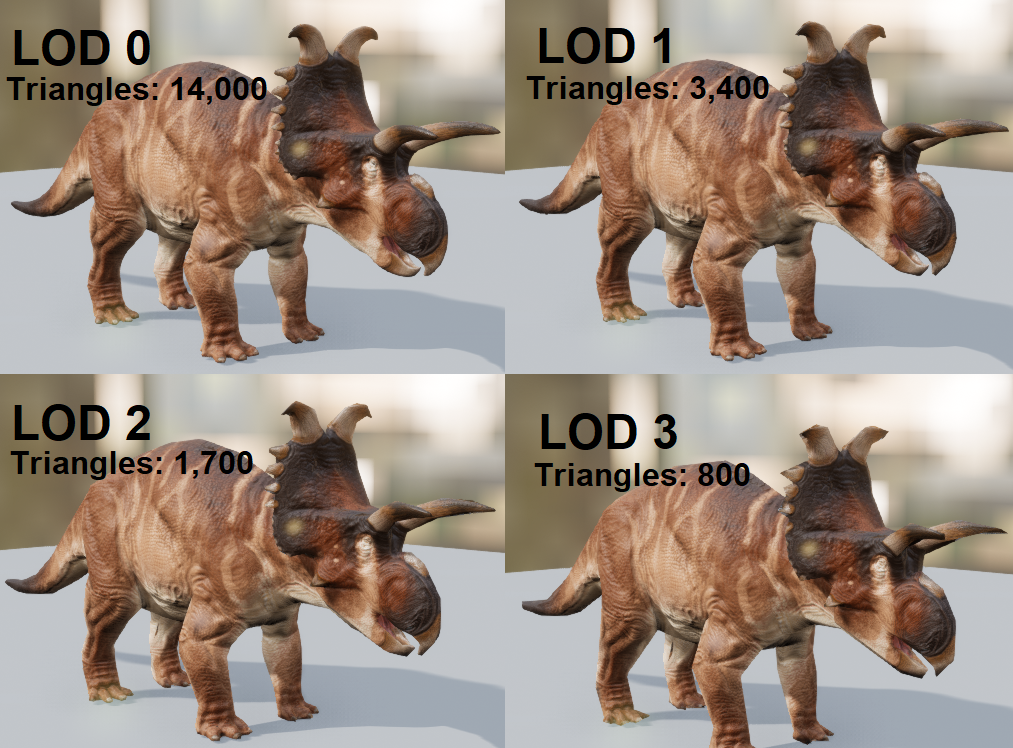
LODs are extremely important for your mod creature. This allows the game to switch to a lower triangle count version of your creature if they are far away from the camera, or are being displayed on a weaker gaming device like mobile phones. It's highly recommended to use LODs for your creature.
Step 1: Auto-Generate LODs
- Open your creature's Skeletal Mesh.
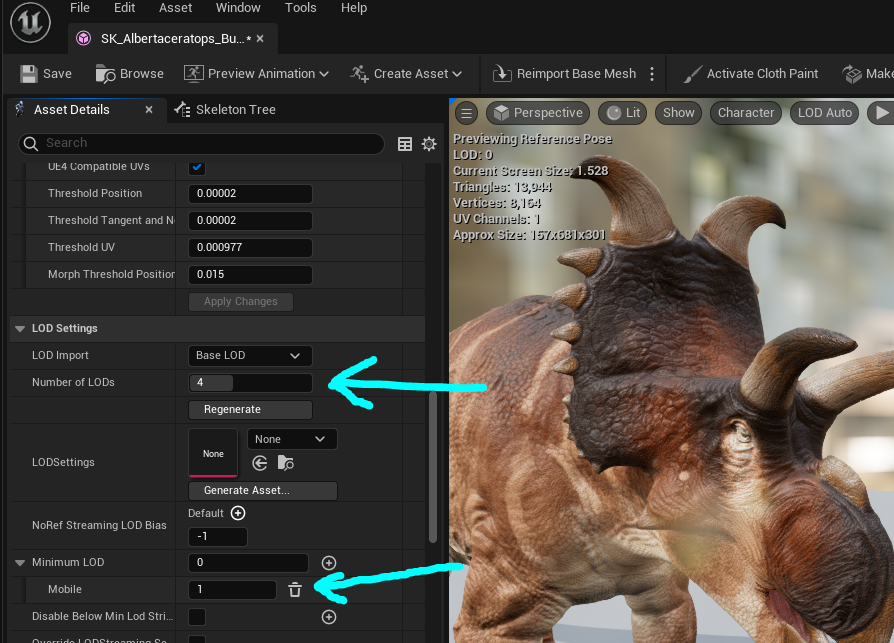
- In the Asset Details panel, scroll down to the
LOD Settingssection. - Change the
Number of LODssetting to4and click "Apply Changes" - After the LODs have generated, scroll down to
Minimum LODand press the(+)button and add a new "Mobile" entry. - Set the Mobile number to
1
You have now generated some lower triangle LODs for your mesh that will display at different view distances. Remember to do this for all your subspecies meshes if you have them!
Step 2: Adjust LOD Settings (Optional)
You can optionally adjust your LODs to increase or decrease the amount of triangles that are reduced, in case you notice your creature is a bit too blocky.
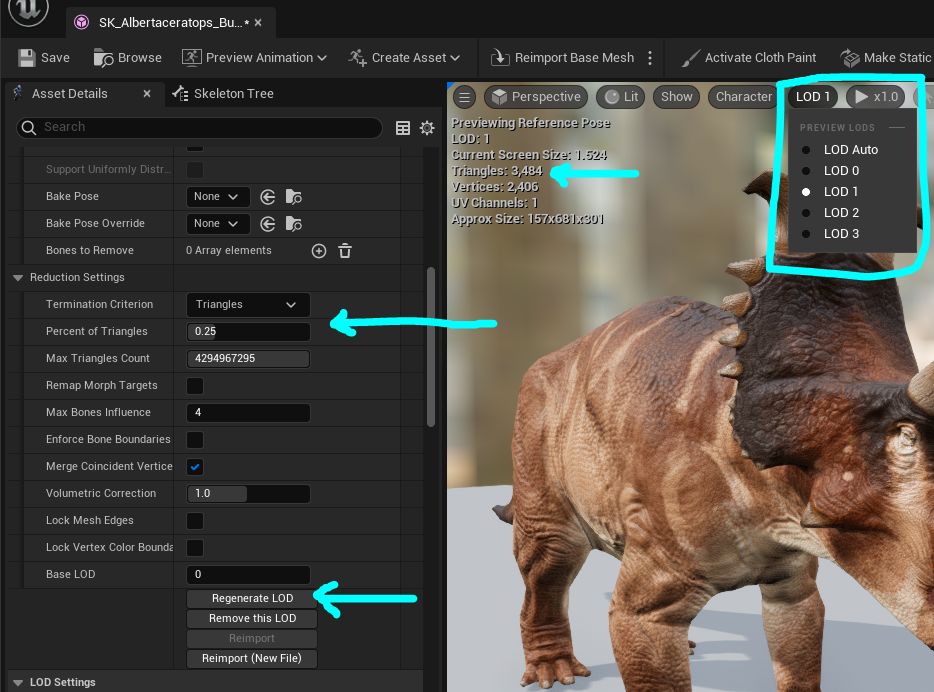
- In the top left of your Skeletal Mesh viewport, select
LOD 0and change it toLOD 1 - Next, under Reduction Settings, you can change the number of triangles you want to target. By default it will be 0.25, but you may want to adjust it to
0.5or0.4depending on the complexity of your mesh. - Click "Regenerate LOD" to see the changes to your mesh.
- Do this for
LOD 2andLOD 3as well until it looks good.
Summary
By following this tutorial you will have completed the following:
- Created LODs for your skeletal mesh
- Optionally adjusted the reduction settings