Updating Your Mod
Releasing your mod for the first time is amazing! However, you will likely want to update your mod with bug fixes, feedback, or add more content. This tutorial explains how to maintain your mod and add more content to it, and how to update your mod via the Cloud Cooker.
Step 1: Upload Updated Mod Files
- Zip up your updated mod files into a .7z file, including the
Contentfolder,Resourcesfolder, and.upluginfile. You can find a tutorial to do that here. - Upload your Mod.7z file to your file hosting site of choice. We suggest Dropbox. Copy the download link to your clipboard.
INFO
You need to make sure the Dropbox link has dl=1 at the end.
Example: https://www.dropbox.com/s/abcDEFgeHijKLEadwf18fh91f392?dl=1
- Once your file has been uploaded, visit https://alderongames.com and click the "My Mods" button on the top right of the page. Make sure you are logged into your account.
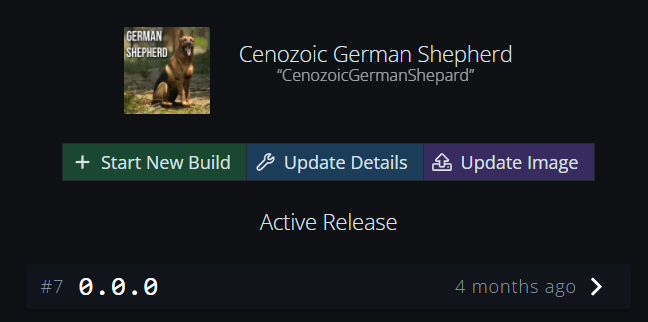
- Click on your mod from the list and select "+ Start New Build".
- Paste in your download link to your mod files and click "Start New Build". From here, you can monitor the progress of your mod building. If there are other people's mods building, you may be put into a que.
Step 2: Testing Your Build
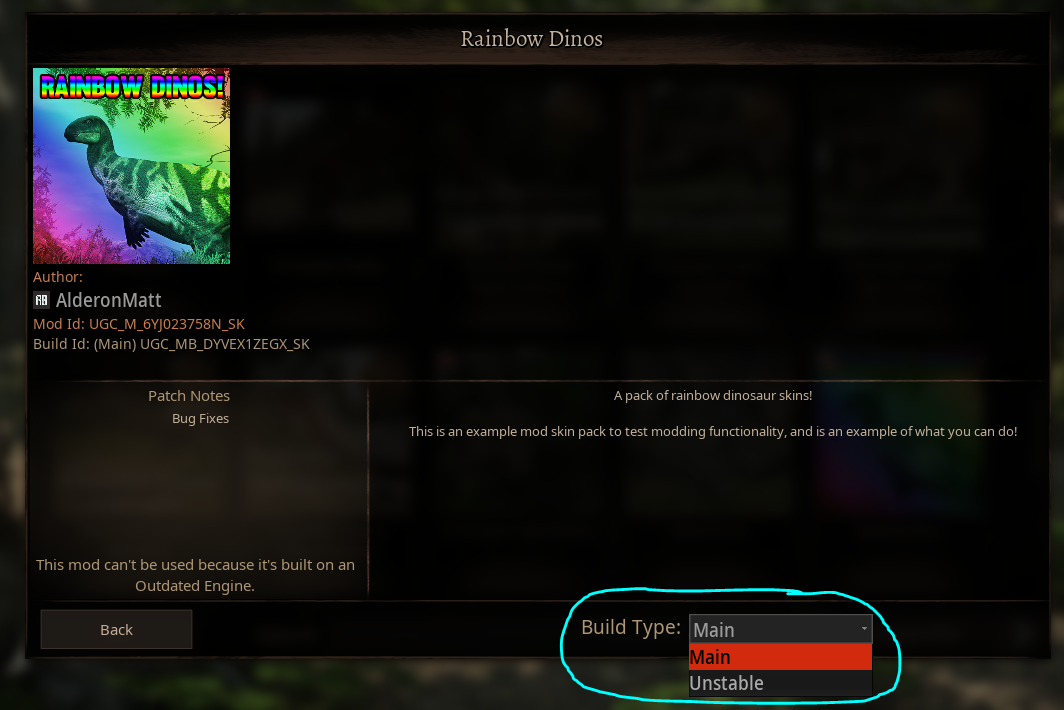
As soon as your mod has successfully built, it will automatically be testable in-game if you select the "Unstable" option from the dropdown when downloading your mod in-game. Only you and anyone on your Alderon Games Friends List will be able to see and download the unstable build of your mod, so you can invite your friends to help you test and give feedback.
You can add new Alderon Games friends here: https://alderongames.com/me/friends
Step 3: Releasing your New Build
Once you have fixed any issues with your mod and are ready to release it to the public, you can set it as the main release.
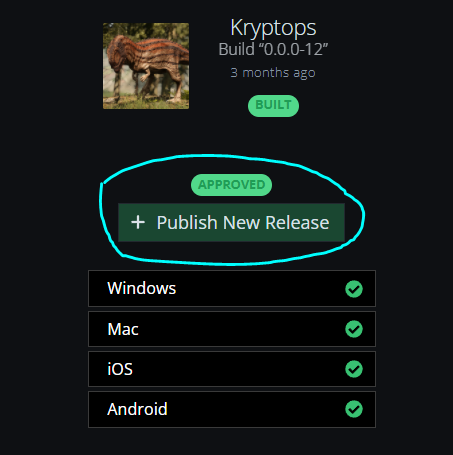
- Click on your successful build and click the "+ Publish New Release" button.
- Enter any patch notes you want to include with your release. We suggest including a list of changes, bug fixes, or known issues so players can be kept up-to-date on your mod developments.
- Click "Publish Release" when you are ready, and that version of your mod will be released publicly.
Summary
In this tutorial we covered:
- Uploading your new mod build to the Cloud Cooker
- Testing your mod through the unstable version
- Releasing your new mod version to the public