Create Morph Targets
Path of Titans uses Morph Targets for growth, blinking, and breathing.
INFO
There are many names for Morph Targets, including Blendshapes, Morphs, Shape Keys, and others. The name depends on what software you are using, but Unreal calls them Morph Targets.
Blinking and breathing is typically animated by hand and baked into the animation. However, this means you cannot power these items programmatically. Path of Titans handles these values based on your creatures status. For example: creatures breathe faster when they are low on stamina, and close their eyes when they are dead.
We highly suggest not animating blinking or breathing on your creatures, and instead set up Blink and Breathe blendshapes.
Step 1: Create Morph Target in your 3D Software
INFO
There are many names for Morph Targets, including Blendshapes, Morphs, Shape Keys, and others. The name depends on what software you are using, so please research what you need to do for your particular 3D software package.
You must create 3 morph targets with the exact names as follows:
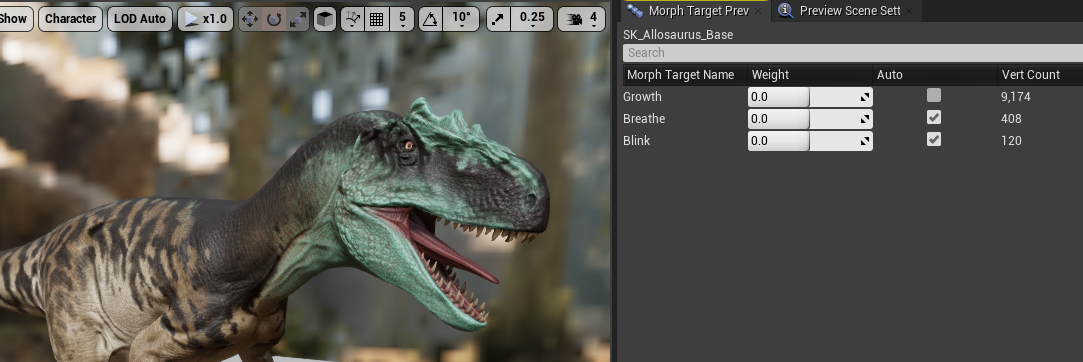
Blink- your creatures eyes closed.Breathe- your creatures chest expanded as it would look when breathing in.Growth- a morph target for the way your creature will look when it is a hatchling.
There are many ways to create Morph Targets. Here are a few tutorials you can use.
Tutorial for setting up Morph Targets in Blender:
Step 2: Importing Morph Targets
Please refer to this tutorial to import your assets.
When you import your Skeletal mesh, if your Morph Targets were exported from your 3D software correctly, you will see three Morph Targets as shown below. If you do not see these, you may have exported your Morph Targets incorrectly.
WARNING
If you already have a Skeletal Mesh imported into Unreal, you CANNOT reimport it to add your Morph Targets. It must be a brand new mesh import. It's annoying but this is how it works.
Summary
By following this tutorial you have:
- Created Morph Targets for your creature's mesh.
Congrats! You can now move on to the next step.