Optimizing Your Map for Mobile
Video tutorial for optimizing your map and assets for mobile:
TIP
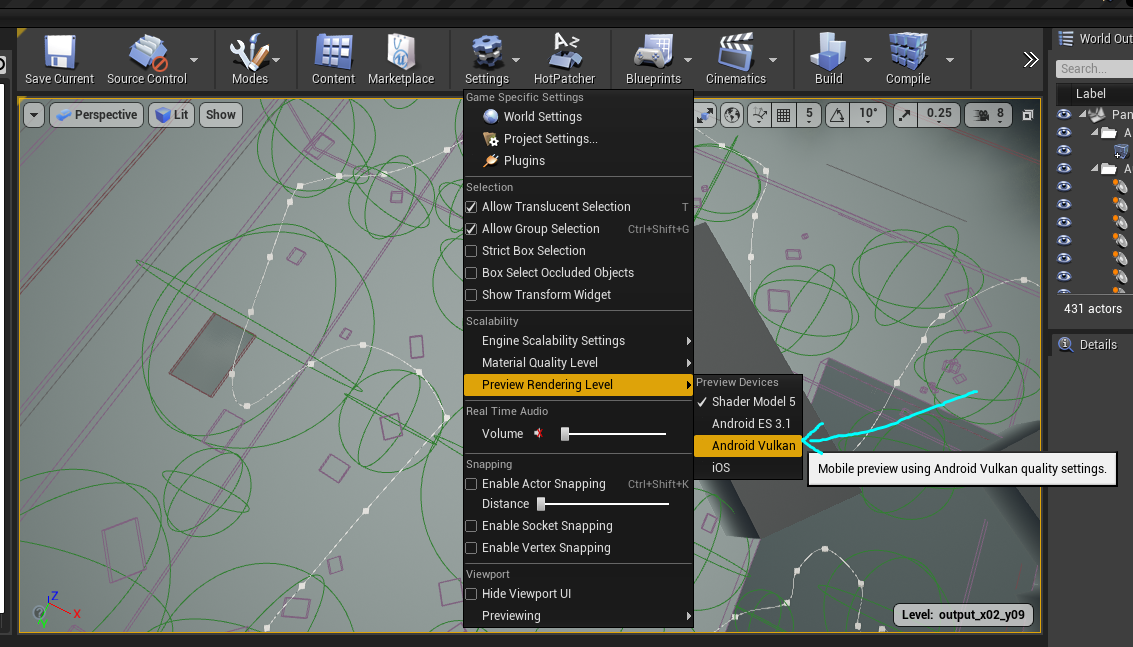
Swap Rendering Preview
When in the editor, you can click Settings > Preview Rendering Level > Android Vulkan to preview your map as if it were rendering on an Android phone. This preview isn't 100% accurate, but can give you a good idea of how it will look and what errors you may encounter.
Use Landscape Tiles/World Composition
From the get-go, you should create a landscape that uses World Composition. This means significantly less triangles are rendered on screen, and helps a LOT with mobile memory usage.
Read the article on how to split a map into tiles here.
Add Mobile LODs to Your Assets
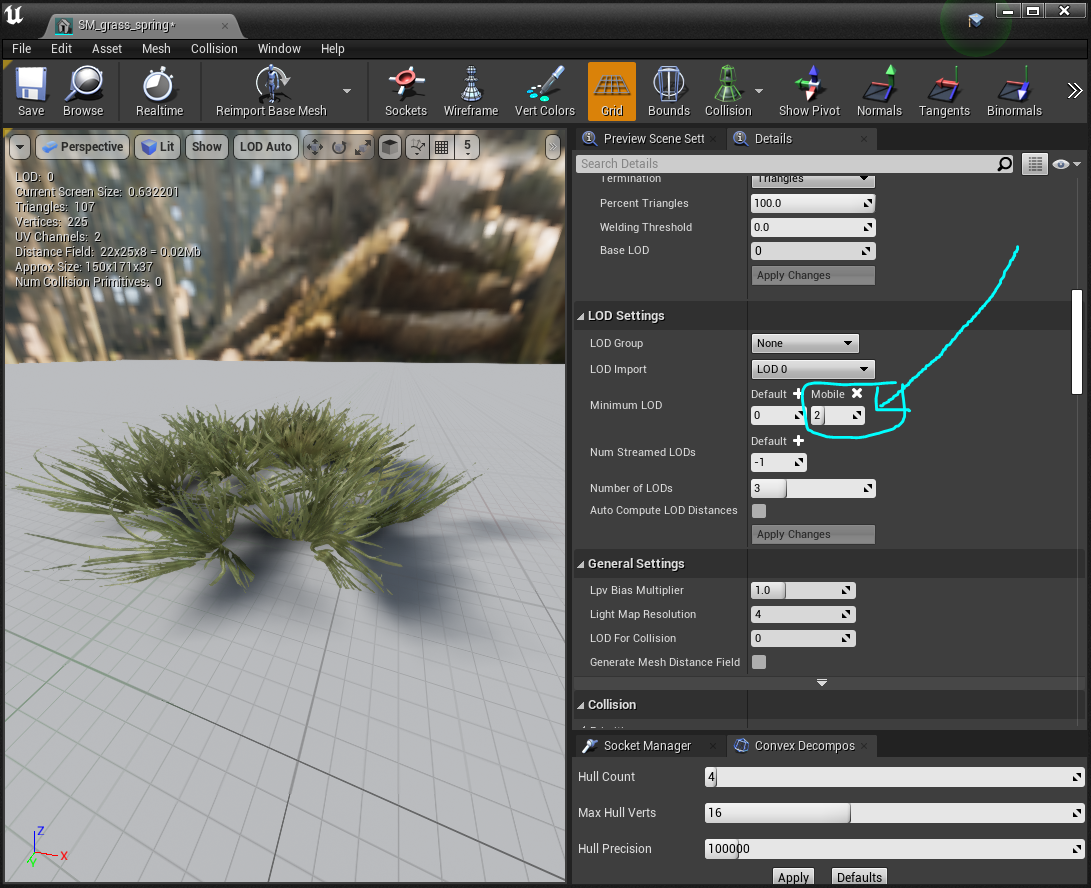
- When setting up your mesh assets, you can open the Details panel and add additional Minimim LOD types. Click the
+and add "Mobile". from here, you can set your minimum LOD to be higher than your typical PC LOD. For example, you can use LOD2 which may be 100 triangles instead of LOD0 which may be 1200 triangles. - You can also change your LOD Screen Size per platform by pressing
+and adding a Mobile setting.
Change Foliage/Grass Density and Cull Distance for Mobile
- Open your grass type that you use on your landscape material.
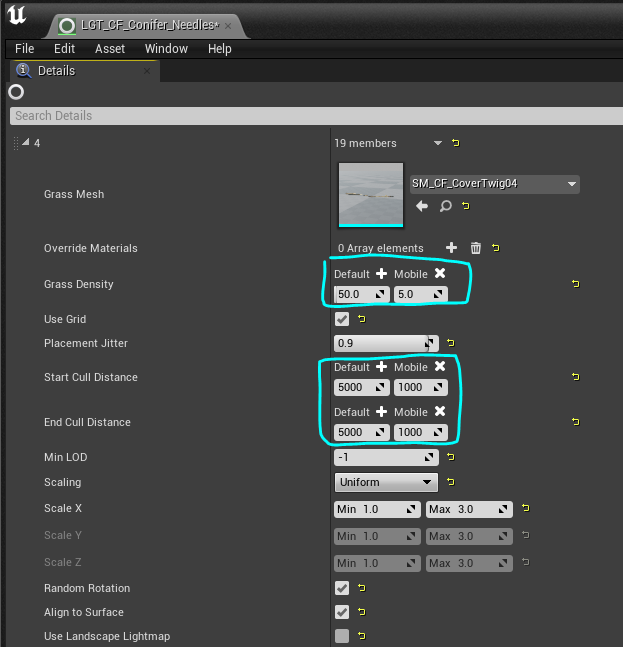
- Under the Grass Type section, you will find the Cull Distance and Grass Density. You can click the
+button to add a different platform. With this, you can remove grass, reduce the density, or change the cull distance on mobile. This allows you to have a thick grassland on PC, but simply use a flat texture on mobile, for example.
Add Material Quality Switches
Video tutorial on how to use Material Quality Switches:
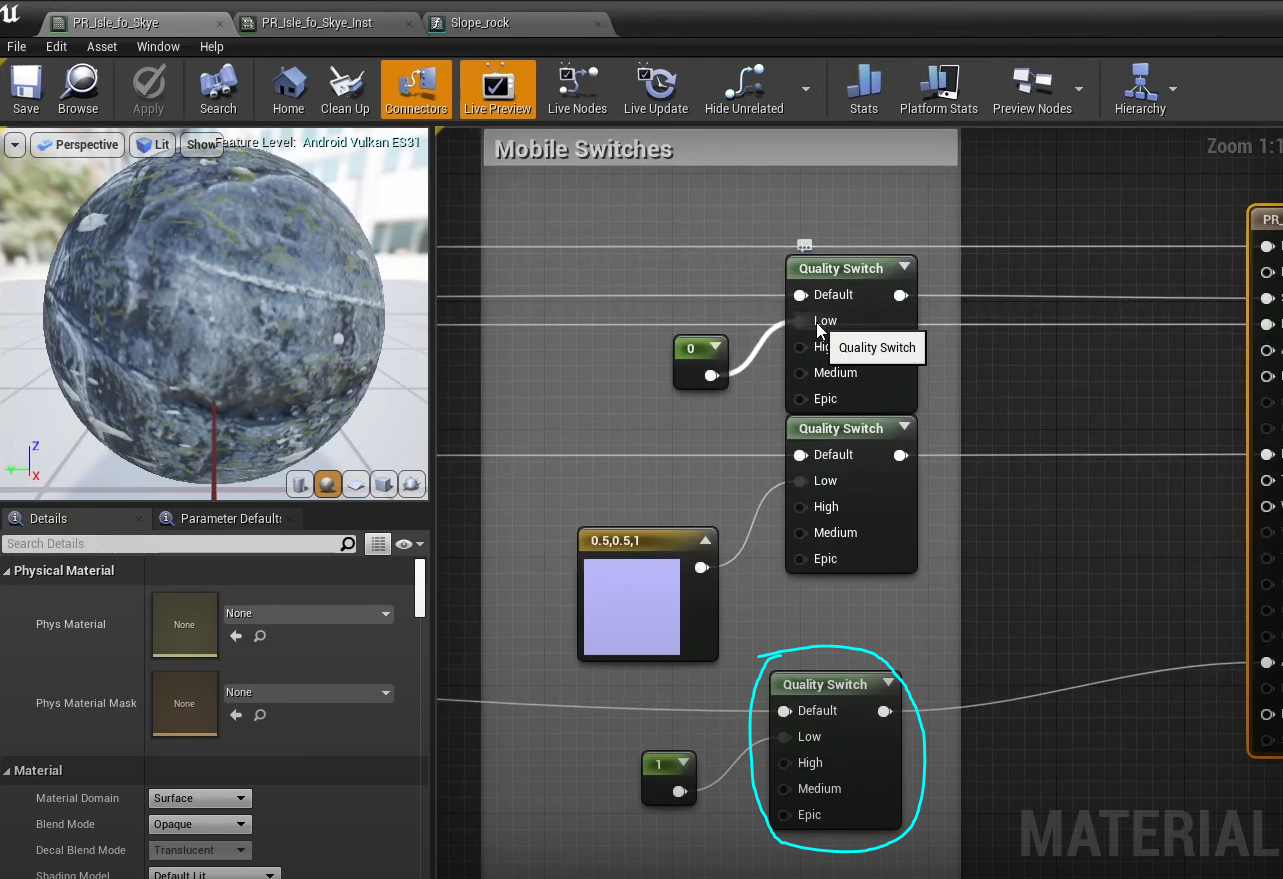
Material Quality Switches allow you to specify certain shader instructions on different quality settings. By default, mobile will use LOW material quality. This means you can add material quality switches for nearly every material you use, and route your simplified shader through the LOW setting on the switch.
Remember: on mobile, a shader cannot use more than 16 unique textures before it will not render. This can cause some problems for complex materials like landscape shaders (which will often have a number of layers, each with 2-3 textures in each.) You can cut some textures on mobile by removing roughness, normal maps, or any textures that don't impact the visual quality as much.
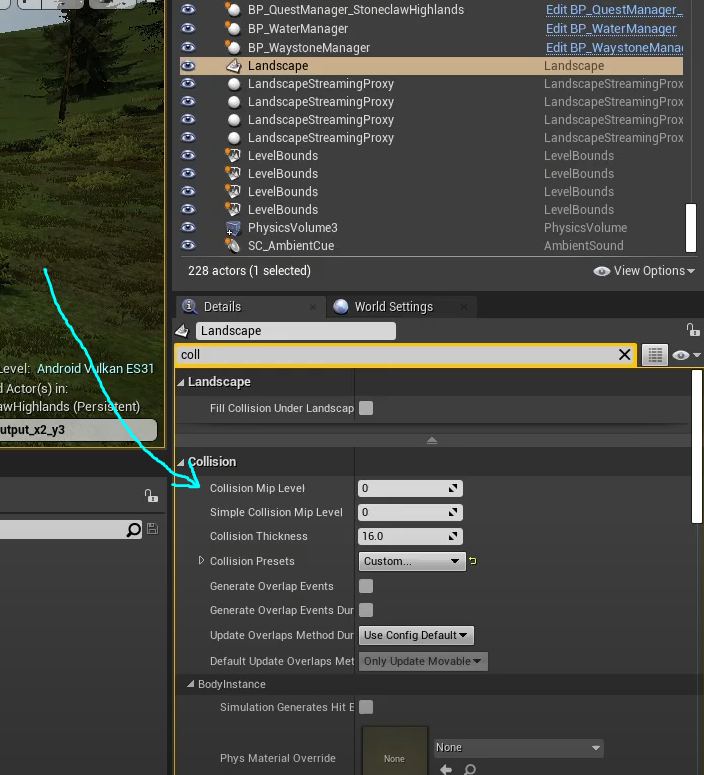
Landscape Collision Mip Level
You can simplify your collision on your landscape dramatically, which will improve performance of your map, by setting the Collision Mip Level to 1. Please test this by running around on your map first, to see if your phase through the landscape at all. It's possible your landscape isn't suited to altering this setting and should use the standard 0.
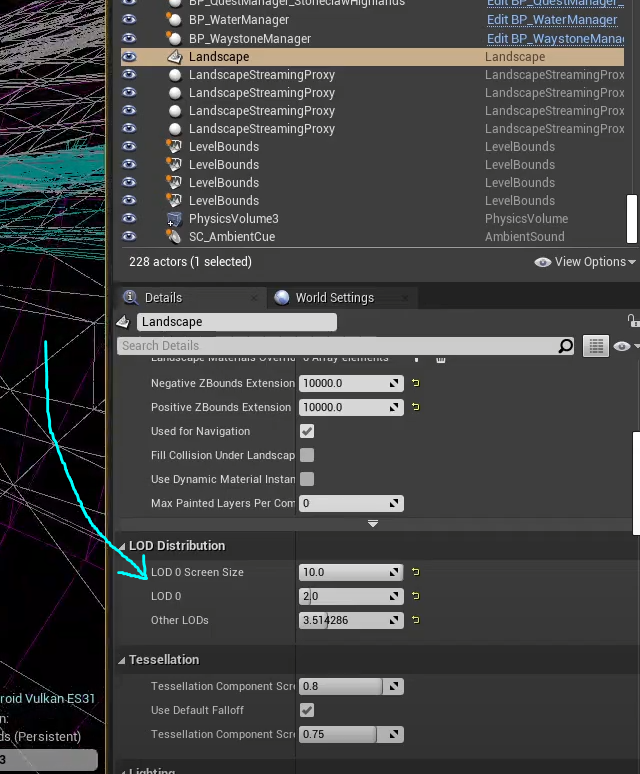
Landscape LODs
You can change the amount of LODing your landscape does, which means it will be rendered with less triangles. This is across all platforms, so make sure this also looks good with PC settings.