Creating Distant Landscape LODs
WARNING
This step should only be done when you are finished working on your map. If you plan on adding more large assets, sculpting the terrain, adding more rocks, etc. you should not perform this step. In fact, it might be a good idea to release your map without LODs and get feedback from players so you can make tweaks before finalizing the layout. See this step for releasing your mod to friends-only.
DANGER
Generating LODs means your map will be more intensive on mobile devices and may make your map harder to run. If you are already running into mobile issues, you may want to skip this step.
What are Landscape LODs?
By default, your level tiles will simply load in or load out when not in use, leaving a blank space where it used to be. This can be fine if your map is only for ground creatures and is heavily forested or foggy where you won't see map edges. However, if you allow for flying creatures it will be very distracting and break immersion to see map tiles.
In this tutorial we will show you how to generate map LODs to fix this issue.
DANGER
This is a very resource intensive step and can possibly take you a long time to complete, or may crash your PC if it runs out of memory. You may need to do this in small steps, such as 1 tile at a time.
Be sure to BACKUP everything before you begin generating LODs!
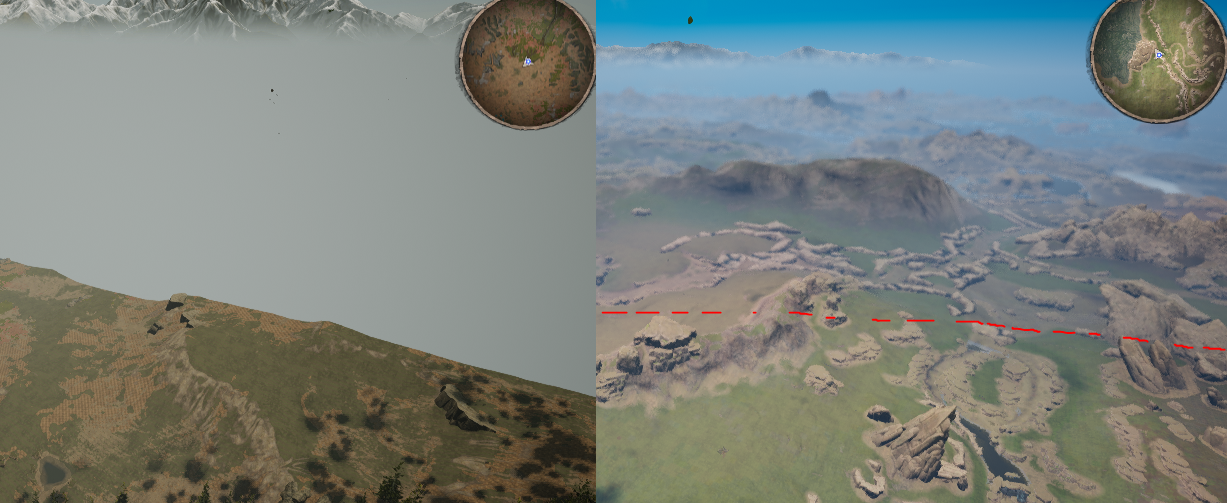
Example Below: Left image is the edge of a tile without any distant LODs. Right image is the edge of a loaded tile, with the distant LODs representing the unloaded levels. It also uses a blurry post-processing effect to better mask the low details of these LODs (optional).
Step 1: Preparing Tiles
DANGER
PLEASE SAVE AND BACKUP YOUR MAP BEFORE BEGINNING THIS STEP!
Due to the way LODs are generated, we must remove all small and unnecessary assets off your map tiles. This includes trees and foliage, small rock meshes, water planes, caves found under the terrain, and any transparent or translucent objects. If we leave these extra assets on the map, your computer will likely run our of memory trying to create LODs for all these assets at once.
- AFTER BACKING UP YOUR MAP: Delete all unnecessary assets from your map, including:
- Quest/Food item blueprints
- Water/river/waterfalls
- All foliage
- All translucent or transparent objects
- Any other assets that do not directly contribute to the way your landscape looks at a distance
WARNING
After deleting all these assets, we suggest NOT saving your level. This way, after generating LODs, you can simply close the editor without saving your map edits, and reopen it with no destruction done to your map but with LODs generated.
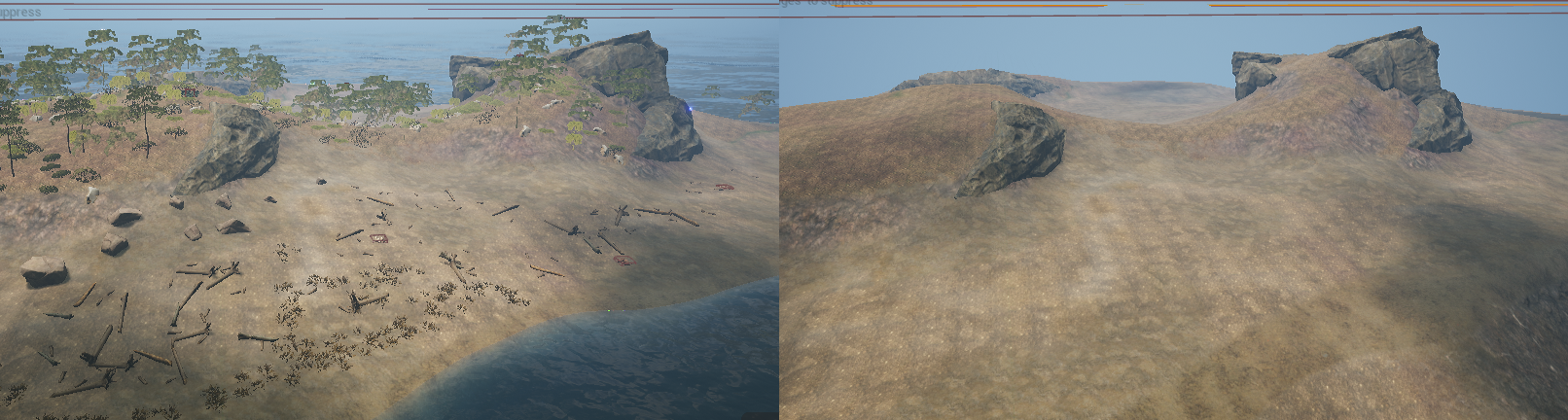
Below (right) is an example of the way your cleaned level should look before generating LODs.
Step 2: Generating LODs
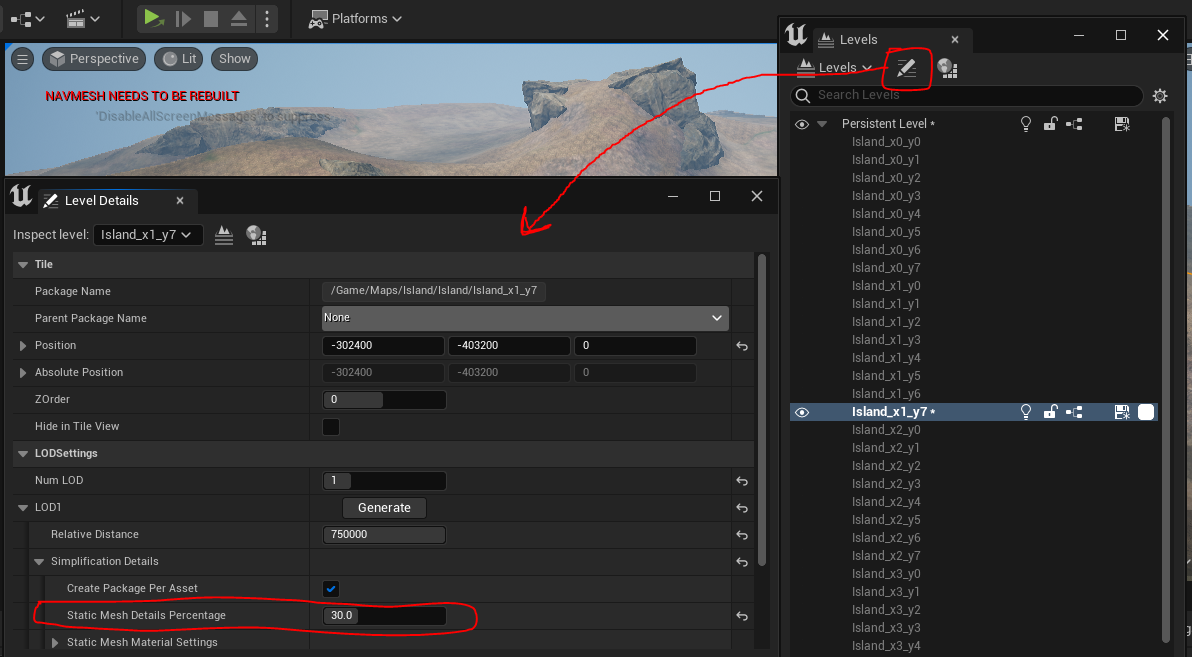
- Open the Level Details for your tile by selecting the "Summon Level Details" button on the Levels window.
- Under LODSettings, change
Num LODto1 - Expand the LOD1 section, and change the
Static Mesh Details Percentageto a lower number, such as30. The higher the number, the more detailed your distant meshes will be, but the worse performance you will have. - When ready, press the
Generatebutton. Your editor will begin generating LODs. This may take a long time depending on how many LODs you have.
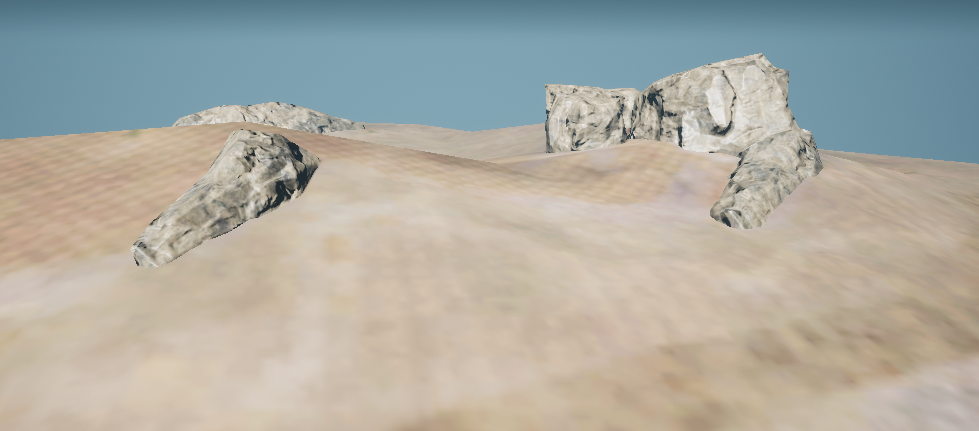
- Once the tile is generated, it will look something like the below image. Note that the landscape and meshes keep their textures, but also are much lower poly count now. It will also generate a number of files for you, including meshes, textures, and materials. If you notice your tile looks a bit shiny or needs some edits, you can always edit these material or textures.
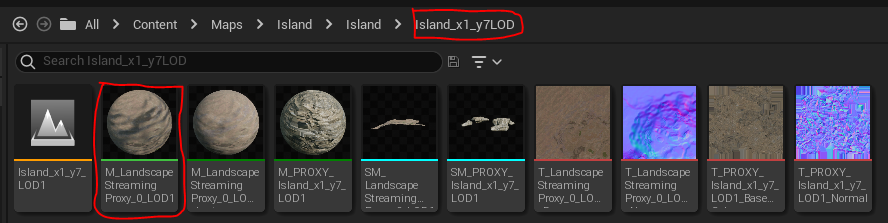
- Do this step for every tile that makes up your map. You can do many tiles at once by opening the details panel with multiple selected and clicking
Generate. However, with each extra tile you add, the higher the chance your editor can crash if it runs out of memory. We recommend doing only 3-4 at a time at most. - Once they are generated, be sure to save all the generated LOD assets found in their LOD folders, and then close the editor without saving your map edits. Then, you can reopen it with no destruction done to your map but with LODs generated.
- After reopening the editor, play on your map and use the spectator camera or a flying creature to fly around your map and take a look at how the LODs look, and make edits as needed.
Summary:
By following this tutorial you have now:
- Generated Distant Landscape LODs for all your map tiles.