Optimizing Your Map
Optimizing your map is arguably the most important aspect of creating a map. Improving performance of your map means it will be more accessible to players, and give them a smoother and more enjoyable experience.
Tiling Your Map
Tiling a map means the engine will only ever render a small chunk of the immediate area around the player at once, which drastically improves performance and can save millions of triangles from being drawn.
If you have not created a map using world composition (where you create sublevels for each 1km x 1km of the map), it is possible to tile your map after the fact using third party tools like World Creator or World Machine. Tutorial on how to split a map into tiles here.
Map Size and Shape
The maximum officially supported map size is 8km x 8km, tiled. If you don’t want to create a tiled map, the maximum supported size is approximately 2km x 2km.
When designing your map, you will want to aim for numerous mountains, valleys, and generally uneven terrain. This is important because it will allow the engine to cull out objects that are not being displayed.
If you were to create a flat map, everything in the distance would have to be rendered and in turn causes poor performance. This is not to say you cannot have flat areas, but they should be surrounded by mountains or perhaps have a mountain in the middle to split the area up into visible area chunks.
Asset Triangle Count
Triangle count will likely be the number one cause of poor map performance.
First, we must identify the problematic meshes. Your target triangle count for your map should be between 8-10 million triangles for the scene. You can see how many triangles are in your scene by doing the following:
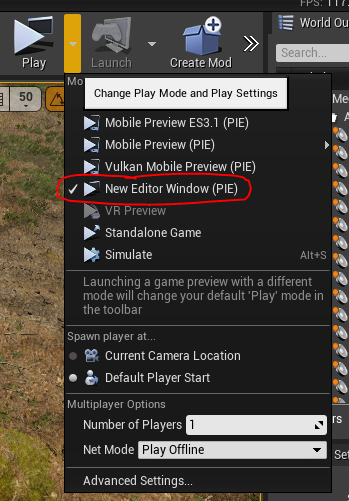
- With your level open, simulate the game with “New Editor Window (PIE)”
- Select a dinosaur and spawn into the level.
- Open the command console with
~and typestat RHIinto your console. - Look at the “Triangles Drawn” section and notice the number to the right.
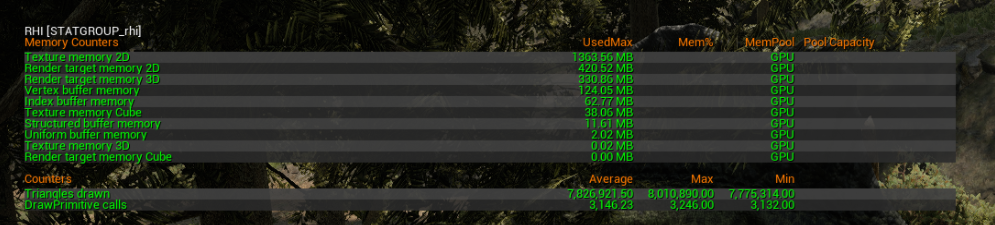
This number will change dramatically depending on what assets you’re looking at so be sure to choose a single area of the map to focus on at a time. Keep in mind that the Scene Triangle Count also includes the triangle count of any open assets in the editor, so be sure to close any open editor windows to get the most accurate reading.
In order to see which assets are causing the most triangles to be drawn, you can open a window that will calculate that for you.
- Go to Window > Statistics to open the Statistics panel.
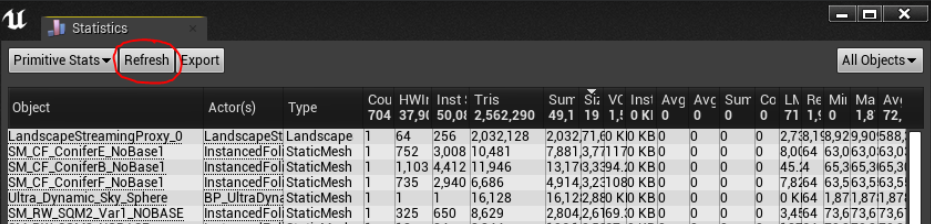
- Look at the various assets listed in the “Object” column and their corresponding triangle count in the “Tris” column.
- You can filter the number of triangles from highest to lowest by clicking the header of the “Tris” column.
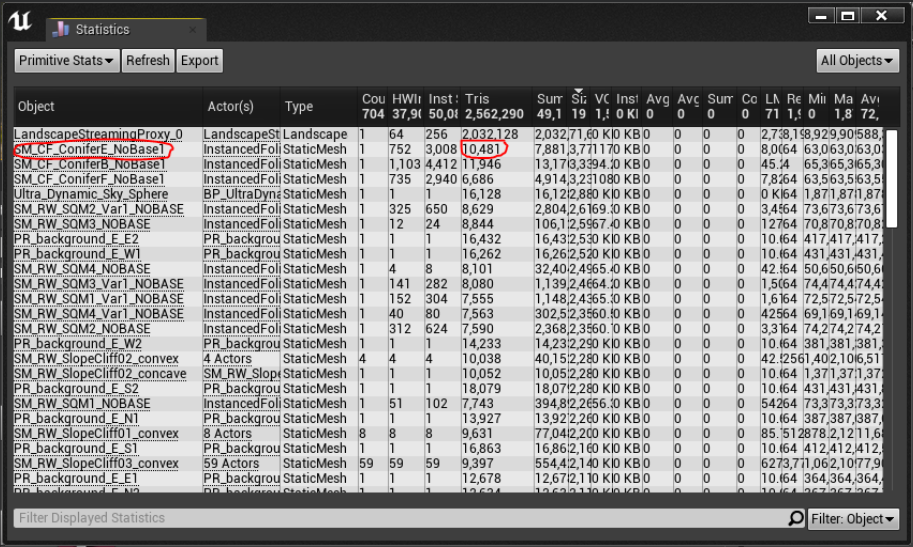
Once the problematic meshes are identified, we can reduce their triangle count with a few easy clicks.
- Open the problematic mesh by clicking on its name in the “Object” column in the Statistics window.
- In the mesh Details panel, scroll down to the “Reduction Settings” section.
- Change the “Percent Triangles” value to a lower number (meaning the triangles of the mesh will be reduced by the entered amount) and click
Apply Changes. - The triangle count of the currently selected LOD will be reduced.
- Change to the next LOD by clicking the LOD drop down menu and selecting the next LOD. Apply mesh reduction to all LODs.
Observe the way the mesh now looks. If the mesh loses considerable detail and looks bad, consider increasing the Percent Triangles value slightly. The important thing is to reduce this number to as small as possible without degrading the quality of the mesh noticeably. Pay attention to the triangle count seen in the top left corner of the window.
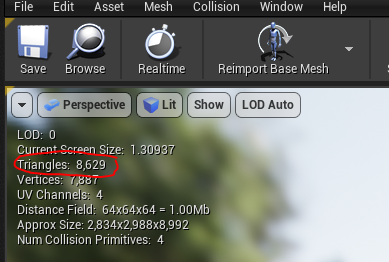
Once you have reduced the triangle count of the problematic mesh, go back to the Statistics panel and click “Refresh” to re-count the triangles in your scene. You will notice the overall count will now have dropped. Use this method of reduction to get your triangle count within our suggested limit of 8-10 million triangles.
Landscape LOD Distance
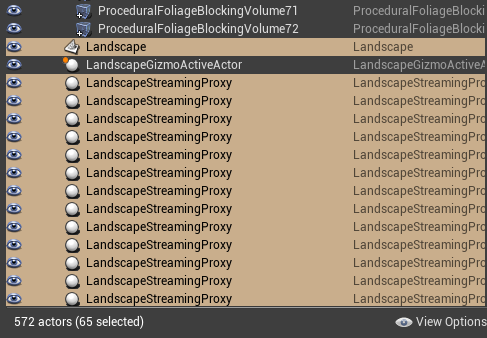
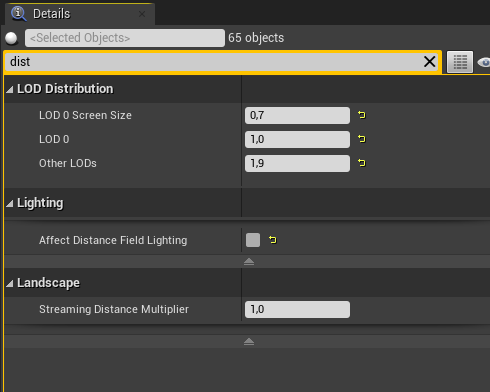
You can adjust the distance and amount your landscape LODs, which can dramatically decrease the number of triangles drawn on screen. Try and lower the draw distance as much as possible without degrading the fidelity of your landscape.
Foliage Draw Distance
Foliage must not draw out further than is needed. You can set the foliage draw distance in the FoliageType. The LODs for each piece of foliage should be as aggressive as possible without impacting the visual quality.
Shader Complexity
More complex shaders mean it takes more instructions for the GPU to display the material. It’s important to keep the complexity as low as possible without losing visual quality.
Tips to reduce shader complexity:
- Avoid using textures or masks if they are not needed. For example, you could use a flat roughness value of 0.75 instead of plugging in a grey texture.
- Pack your black and white textures into the RGB channels of colour images. This is called a “Packed Texture” and will require less texture memory while accomplishing the same task.
- Add feature level switches or quality switches inside your material to specify more simple shader instructions to use when on low-end devices or on mobile.
- Create Material Functions that you can re-use if you find yourself using the same set of instructions repeatedly.
- Separate masked, translucent, and default lit sections of your meshes so they can be used with their specific material types. For example, use default lit materials on branches and bark, and masked materials on leaves.
- Change your viewmode to “Shader Complexity” to view a visualization of your shaders in the world and quickly identify which shaders are problematic.
Grass Types
In your landscape material you can specify landscape grass types to be used on layers. This is significantly important when populating your map with fields of smaller plants such as ferns, grass, or twigs. If you were to manually paint all these meshes you would take a hit on performance.
Grass types can also be scaled back depending on platform type, so aim for Epic settings when setting your grass density in-editor.
Note that grass types cannot have collision, so trees, rocks, and other solid objects should not be put in grass types.