Adding Music To Your Map
WARNING
All music used on your map must not infringe on copyrights, or violate the Alderon Games Modding Agreement.
Path of Titans uses a dynamic music system that allows users to edit the music on their map based on location, time of day, combat state, weather, player states, and more.
Step 1: Set Up Ambient Sound Manager on Map
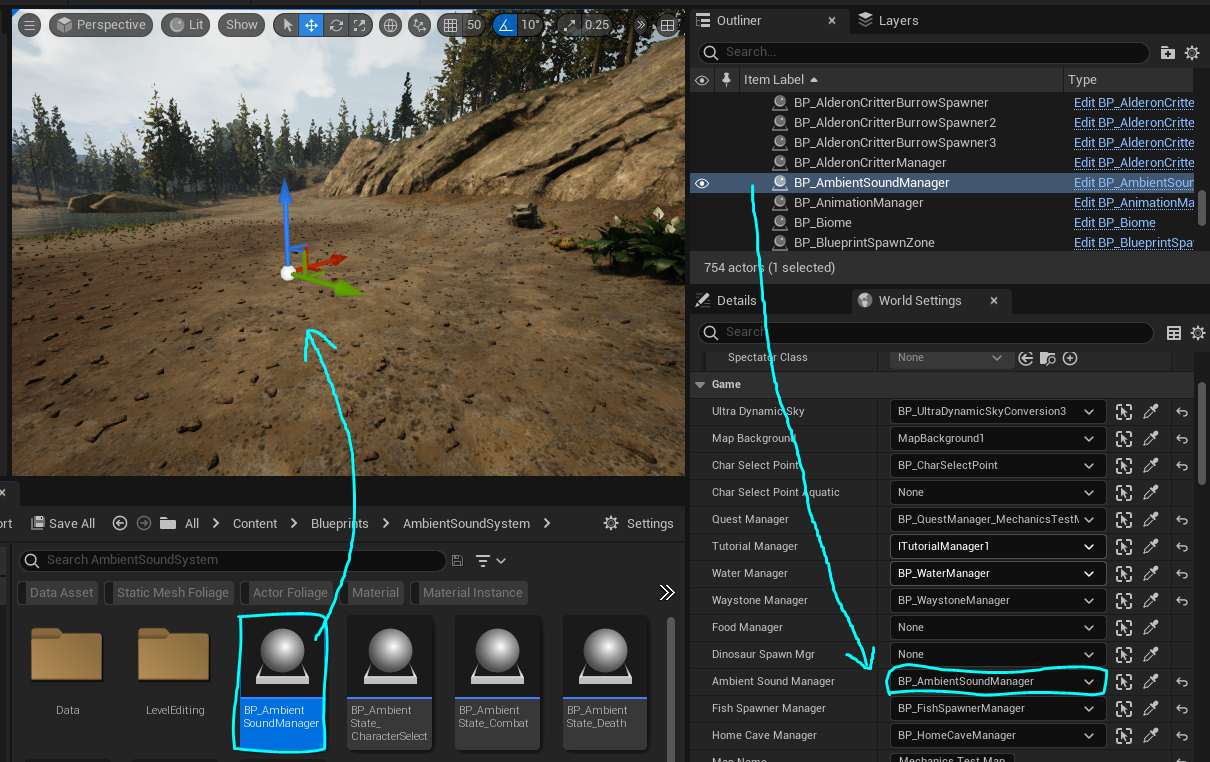
- Navigate to
/Game/Blueprints/AmbientSoundSystem/BP_AmbientSoundManager - Right click the
BP_AmbientSoundManagerand select "Create Child Blueprint Class" - Rename this new blueprint
BP_AmbientSoundManager_MapName(using the name of your map) - Move this newly created blueprint into your mod folder (we suggest creating a
Musicfolder for organization). - Once the blueprint is in your mod folder, drag and place the
BP_AmbientSoundManager_MapNameonto your persistent level. - Open your World Settings and assign the
BP_AmbientSoundManager_MapNameyou just placed into the Ambient Sound Manager slot.
Step 2: Set Up Custom Music (Optional)
If you simply wish to use the base game music setup, you can skip to Step 3.
The Ambient Sound Manager by default will have custom music per biome, and in the home cave, tutorial cave, and character creation screen. You can optionally add music for different states. For example, if you could play music when a dinosaur had a particular buff, during certain weather or map events, or anything else you can think of. Follow the steps to learn how to add a custom music track.
- Navigate to
/Game/Blueprints/AmbientSoundSystem/BP_AmbientState_TutorialCave - Right-click on BP_AmbientState_TutorialCave and select "Duplicate".
- Name your new duplicated blueprint
BP_AmbientState_MyState(whatever you want your state to be called) - Move this new blueprint into your mod folder.
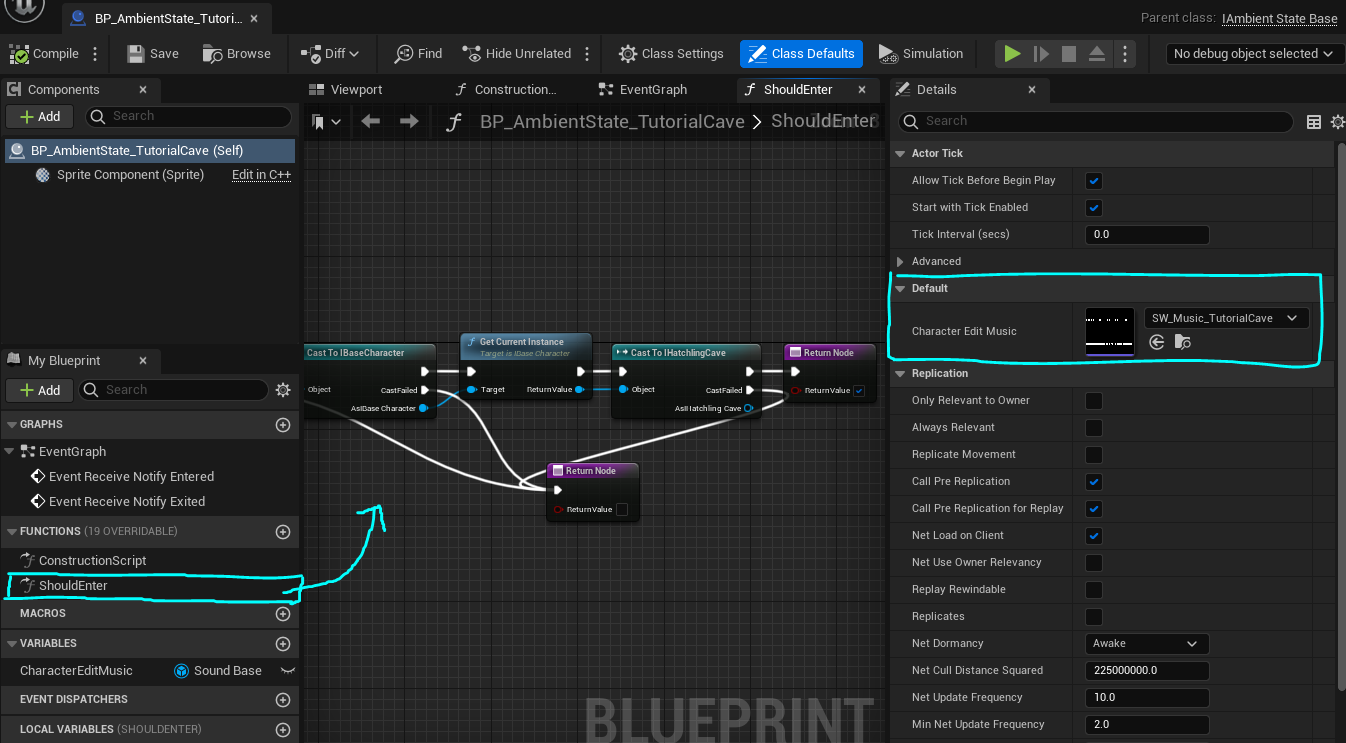
- Doubleclick your new blueprint to open the blueprint editor.
- From here, doubleclick the "ShouldEnter" function.
Inside the ShouldEnter function, you can set any logic to determine when your music should play. You can assign the music played in the Character Edit Music variable.
Once you have created your custom music states, you must slot them into your AmbientSoundManager.
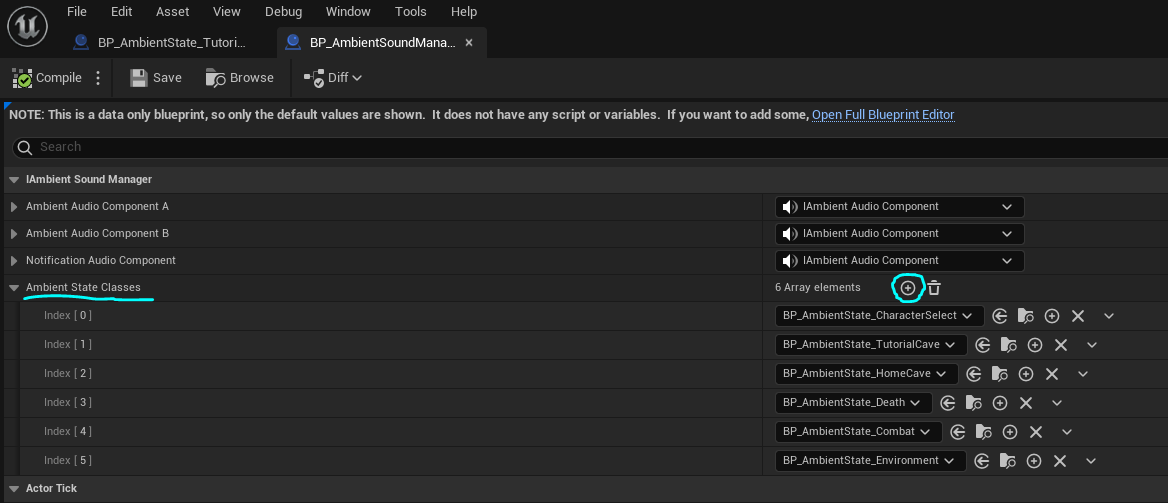
- Open the
BP_AmbientSoundManager_MapNameyou created in Step 1. - Under "Ambient State Classes", Add a new entry and assign your
BP_AmbientState_MyState - Rearrange the states in the list from highest priority (top of list) to lowest priority (bottom of list). For example, combat music should probably be higher than environmental music so players know when they're being attacked.
WARNING
It's important you make these edits in your BP_AmbientState in your mod folder, NOT the one in the content folder.
Step 3: Add AmbientZone Data Assets (Optional)
When players walk into specific areas of your map, you can play custom music. By default we have a number of music types already set up: Beach, Forest, Plains, Desert, and Underwater. You are free to use these, or you can set up your own music in the steps below.
TIP
The Default ambient zone is hardcoded to play no music, but will play combat music is players are attacked. If you have no ambient zones on your map, the Default Ambient zone will be used.
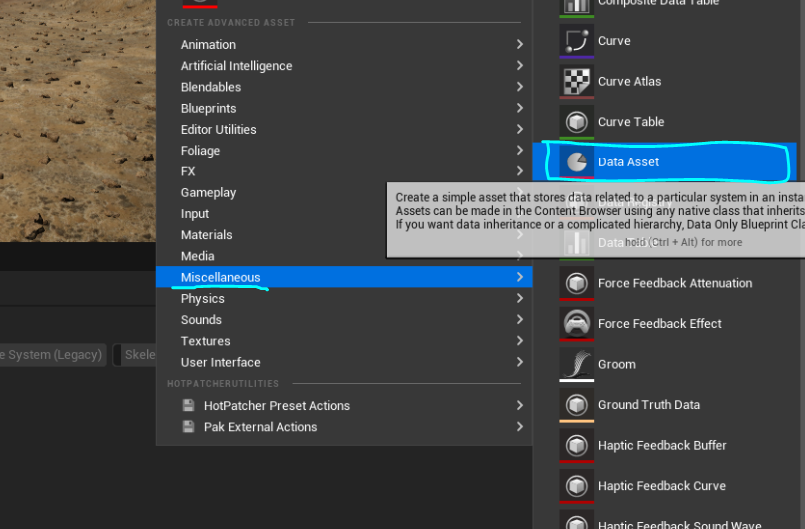
- Right click in your mod folder and select
Create Advanced Asset > Miscellaneous > Data Asset - Select "IAmbientZoneData` and click "Select"
- Name your new data asset
AmbientZone_MyZone(named whatever your zone type is)
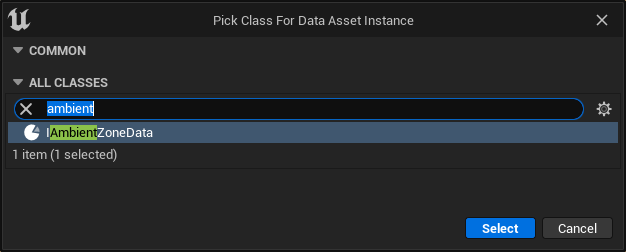
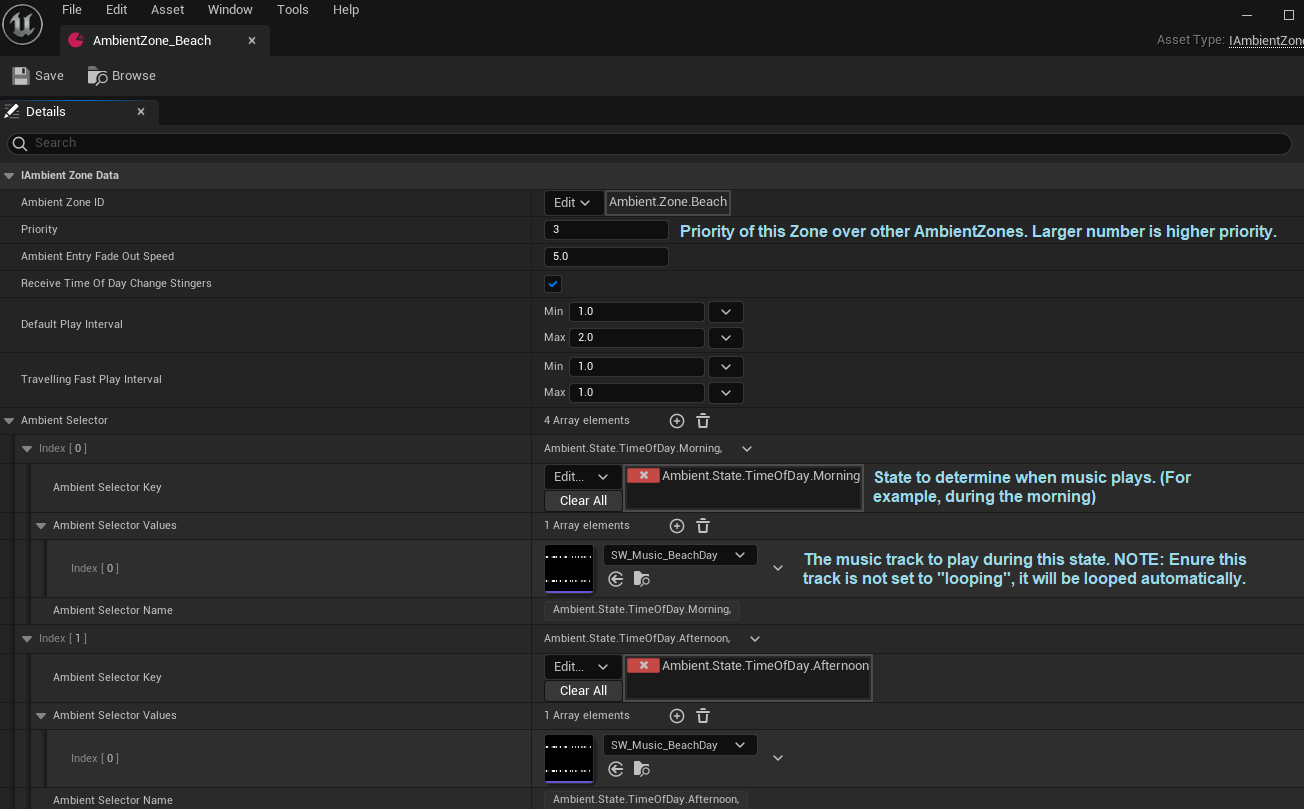
- Open your newly created AmbientZone, and take a look at the parameters.
The parameters below should be straightforward, however, when it comes to the Ambient Selector Key, you can use nearly any of the states available, it doesn't just have to be time of day.
Step 4: Assigning AmbientZones On Your Map
In order for AmbientZones to be triggered, they need to be set up in the BP_AmbientState_Environment class. You must ensure that your BP_AmbientSoundManager class contains exactly one Ambient State class which derives from BP_AmbientState_Environment.
Open this blueprint in the blueprint editor, and navigate to the Ambient Zone Overrides map.
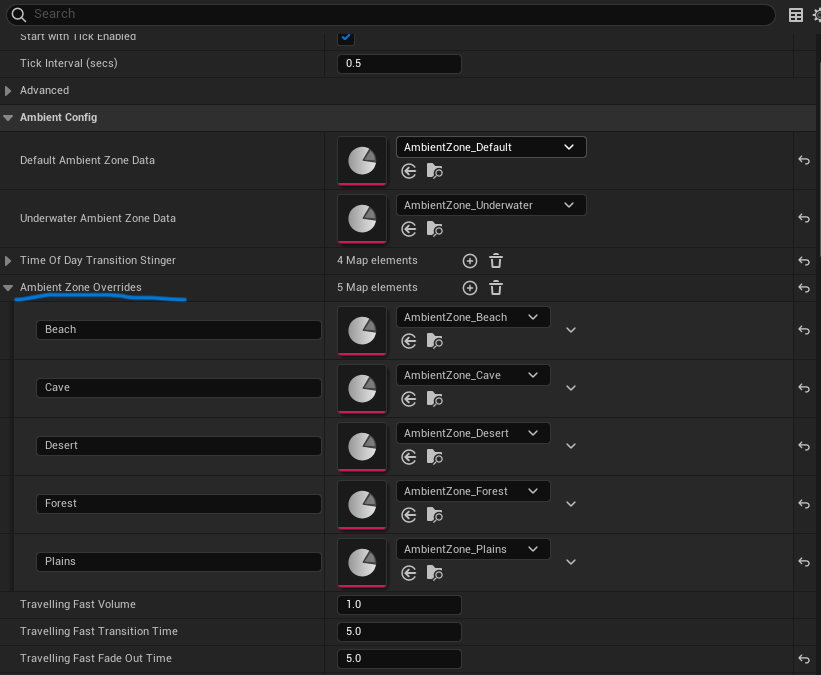
Create an entry for the AmbientZone you wish to add to your map. In the left field, type a name for this zone. This name can be anything, but you will need to remember it to trigger the music later. In the right field, assign the AmbientZone asset that you wish to trigger.
To define where you want this music to play, you must assign this AmbientZone to a BiomeTrigger. In your map, place or locate an instance of the BP_BiomeTrigger blueprint. Select this object in the Outliner, and navigate the details panel until you see a category called BIOME.
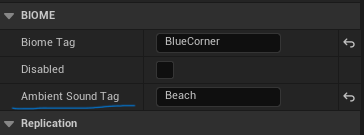
Edit the Ambient Sound Tag field to the name of the AmbientZone you wish to play. This name must exactly match the name that you assigned to the AmbientZone in the Ambient Zone Overrides list in your BP_AmbientState_Environment blueprint.
When the player enters the area defined by the BP_BiomeTrigger, the music should then switch to the music defined in your AmbientZone data asset.