Adding New Chat Commands
Adding new chat commands is a great way to add custom functionality to servers which feature your mod. Custom chat commands can be anything from displaying some information to a user, to spawning a horde of objects.
Add A New Chat Command
Add a new blueprint that is derived from IChatCommand.
- Navigate to the
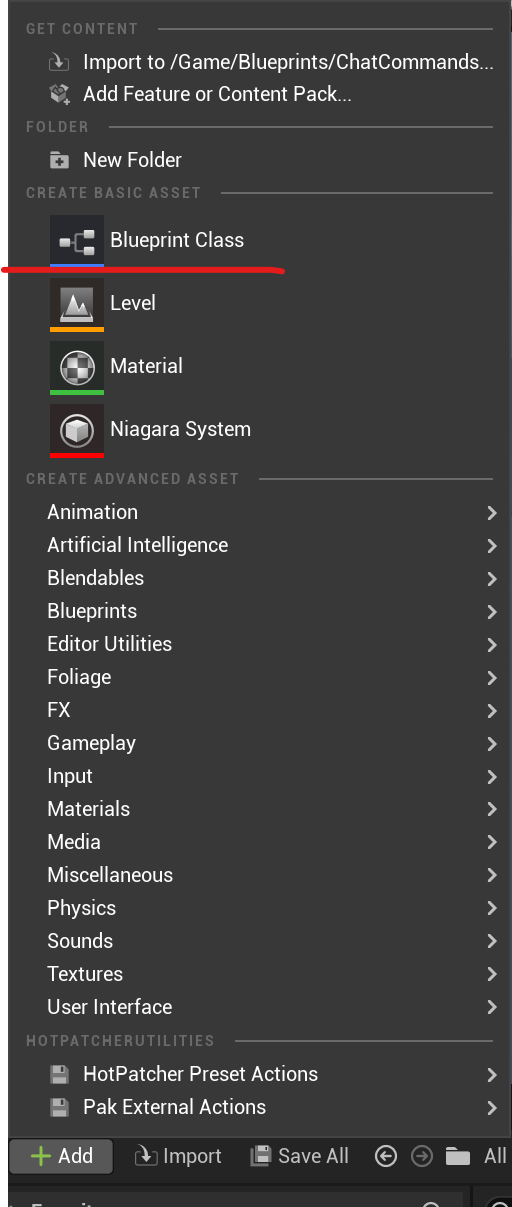
Blueprints/ChatCommandsfolder. If it does not exist, create it. - Press the
Addbutton in the content browser. - Select
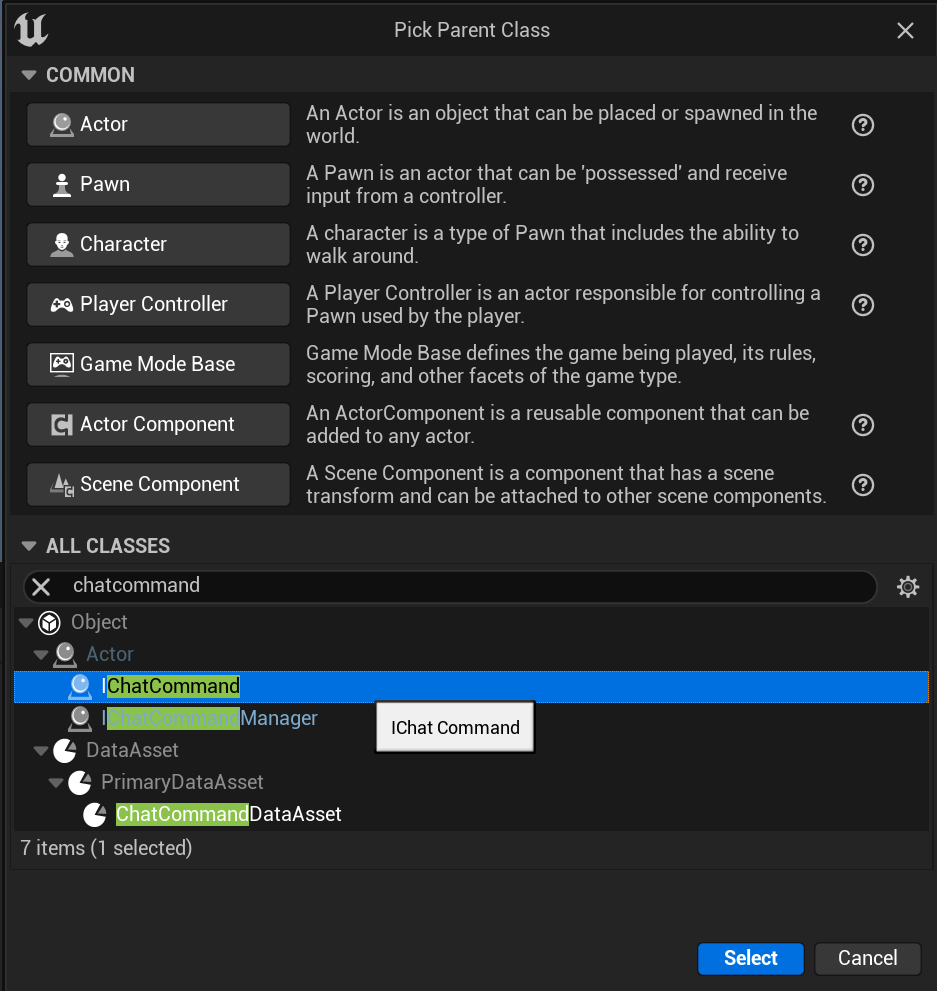
Blueprint Class - Search for the
IChatCommandclass under "All Classes". - Select
IChatCommand. - Name the blueprint. Something like
BP_ExampleCommandwill be fine, but it is up to you.
Editing The Default Values
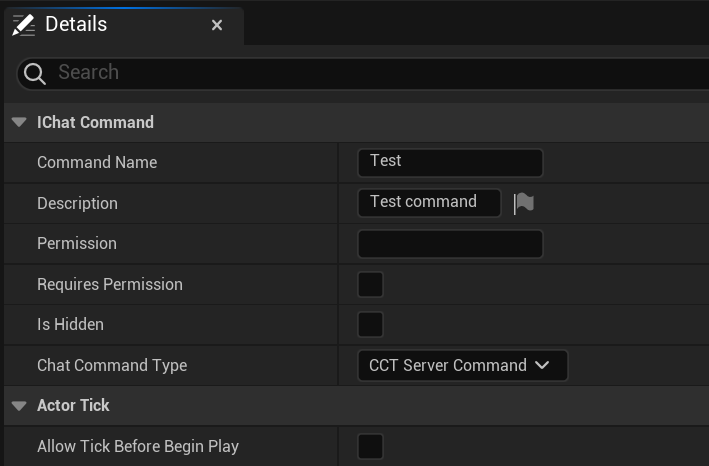
Now you can open that blueprint by double clicking on it, and edit the default values.
Command Nameis the name that's used by the user when executing the command.Descriptionis the text that is displayed to the user when the "Help" command is executed.Permissionis the value that is used by player roles to determine which player roles have access to this command. If left empty, the permission is the command name. It can be useful to set this permission if making a group of commands which all use the same permission (teleport, bring, goto all use "teleport" permission).Command Typedetermines how the command is executed.ServerCommandmeans that the command will be executed on the server. This is important for commands that effect other players or require other player data, or any data that a client does not have access to.ClientCommandis a command that is run on a client. Use this one if you don't need any server-only data.StandaloneCommandis the same as 'ServerCommand', except that a Player Controller is not passed through, meaning this command can be executed remotely (via RCON).
Requires PermissionIf on, the command requires the permission specified by thePermissionfield.HiddenIf on, this command is not displayed with the "Help" command or in the roles editor.
An example:
Make It Discoverable
To make it usable in the game, it needs to be discoverable by the asset registry, and to do that we need to have a reference to our chat command in a ChatCommandDataAsset. These are found automatically when running the game.
- Navigate to the
Blueprints/ChatCommandsfolder. - Press the
Addbutton in the content browser. - Go into the
Miscellaneouscategory. - Select
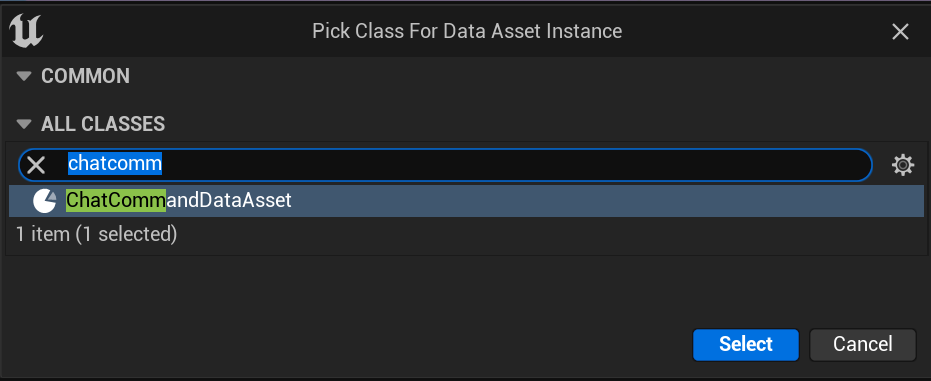
Data Asset - Search for
ChatCommandDataAssetand select it. - Name the data asset something like CC_ExampleCommand. (CC means Chat Command)
- Double click the data asset to open its editor.
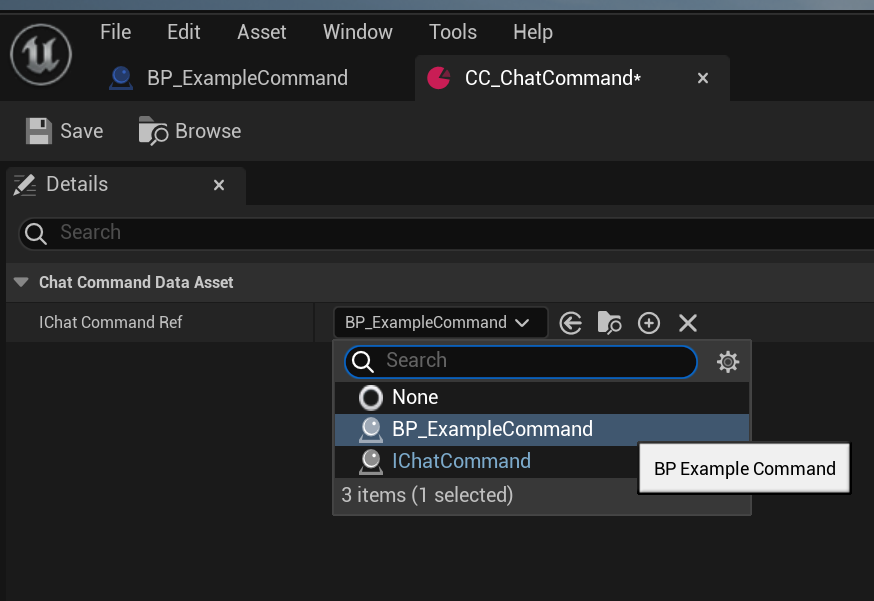
- Set the
IChatCommandRefmember to your command. If you named it the same as in this guide, it will be namedBP_ExampleCommand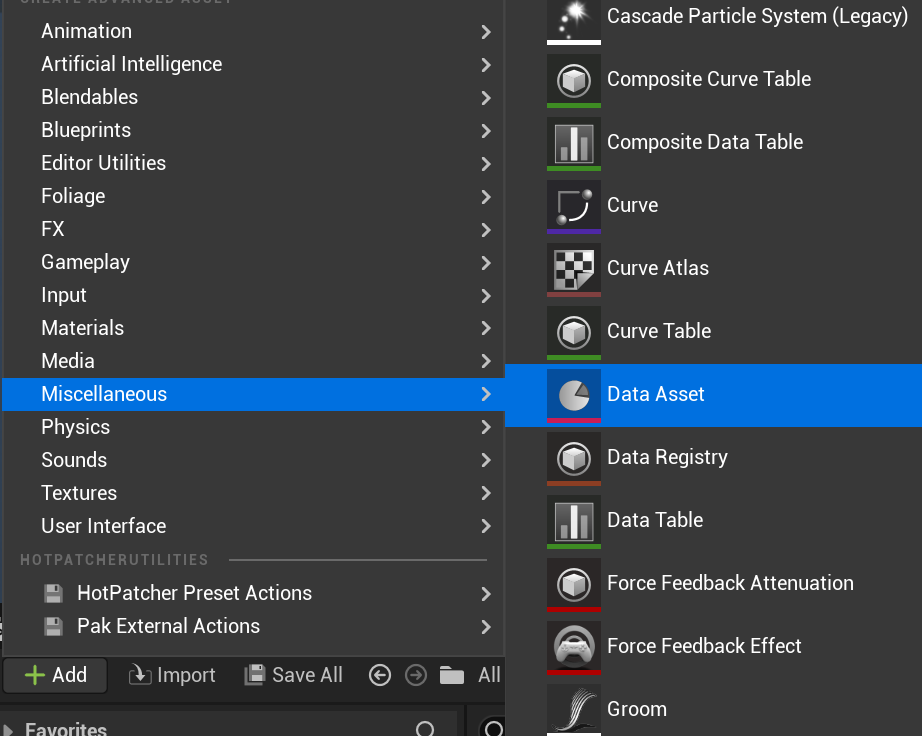
Adding Functionality
Now it is time to give some functionality to your custom command. You can explore with the commands yourself, or there is some examples for creating some commands to get you started: Display the player's nameTeleport players to youUsing Parameters
Play The Game
If all goes well, now you can run the game, load a level, execute your command and see the results!