Adding Food and Quest Items
In Path of Titans, all quest items are also doubled up as food items. Each item has a "Quest" tag and a "Food" tag. This design decision was made to both simplify quest items and also create competition between dinosaur types, such as carnivores getting a quest to collect herbivore food items, and vice versa.
If you do not want your quest item to be eaten, you can give it a food tag that no dinosaurs can eat. For example, a pile of rocks could have a "RockPile" food tag, which will make it inedible to all dinosaur unless they somehow have a Diet ability that grants them the "RockPile" food tag.
Placing Quest/Food Items on your Map
- Go to
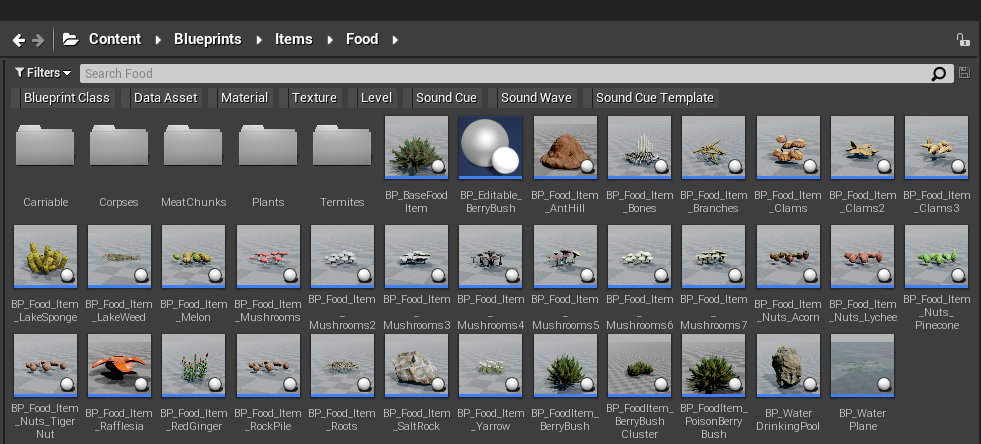
Content\Blueprints\Items\Foodand check out any of the base game food/quest items. - Select your food/quest item and drag it into your sublevel. Make sure you place all food items into their corresponding sublevel.
Creating Quest/Food Items
If none of the base game food/quest items are what you're looking for, you can create your own.
Step 1: Create your Food/Quest Item Blueprint
- In your Mod folder, create a new folder called
Blueprints\Items\Food - Go to
Content\Blueprints\Items\Foodin the base game folder, right click onBP_BaseFoodItem, and selectCreate Child Blueprint Class - Name your newly created blueprint and move it into your mod folder in
Blueprints\Items\Food
Step 2: Editing your Food/Quest Item
- Open your newly created food/quest item and look at the Details panel.
- Edit the following settings from the table below.
Food Item Parameters
Set up food item parameters from the list below.
| Item | Description |
|---|---|
| Eat Anim Name | The tag of the animation that plays when a creature is eating this food item. |
| Food Value | How much food this entire food item contains. |
| Infinite | Whether or not this food source is infinite. |
| Hide when Empty | Hide the entire mesh when it runs out of food. |
| Regenerates | Whether or not it passively regenerates food. |
| Regeneration Rate | How many seconds before it applies the Regeneration Value. |
| Regeneration Value | How much food is restored. |
| Decays | Whether or not it passively decays, losing food. |
| Destroy when Decayed | If the item reaches 0 food, if it should be destroyed. |
| Decay Rate | How many seconds before it applies the Decay Value. |
| Decay Value | How much food is decayed. |
| Food Tag | Used to determine whether a dinosaur can it it or not. |
| Can be Eaten by Carnivores/Herbivores | Flag whether this is exclusively eaten by Carnivores or Herbivores. |
| Enable Dynamic Material Updates | If you have a food item that needs a material update to show how much food is left, check this box ON. In your food meshes material, create a parameter called FoodValue that ranges between 0 and 1, where 0 is completely empty and 1 is full. This is useful for food like bushes or flowers which will get smaller as the dinosaur eats it. See BP_FoodItem_BerryBushCluster for an example. |
| Interaction Prompt Data | Allows you to set custom information and image about this item. We highly suggest just copying the values from a base game food item into your custom food item. |
| Enable Additional Mesh Hiding | If you have a quest/food item that is a number of meshes that disappear over time (instead of a material changing over time), turn this checkbox ON. For example, a pile of clams that disappear as they are eaten. |
| Component Tags | If you are using Additional Mesh Hiding (above) you must add extra meshes in your blueprint. Each additional mesh must have a Component tag AdditionalComp added in order to hide when the food/quest item is depleted. |
| Box Comp (Box Collision) | Scale this box to increase/decrease the targeting hitbox. Try and make this completely surround your food/quest item. |
| Enable Carnivore/Herbivore/Omnivore Gameplay Effect | Slot in a gameplay effect here if you want eating this item to grant some kind of buff or status effect. |
Quest Item Parameters
Set up quest item parameters from the list below.
| Item | Description |
|---|---|
| Quest Item | Check ON if this blueprint can be used as a quest item. |
| Quest Tag | The tag used for this quest item. |
| Quest Amount | The amount of quest items this blueprint represents. |
| Spawn Point | Whether or not player can pick up a carriable version of this food/quest item. |
| Item to Spawn | The food/quest item that will spawn when players "Pick Up" this food item. |
| Collect Sound | The sound that plays when this quest item is collected. |
Step 3: (Optional) Adding Creator Mode Objects
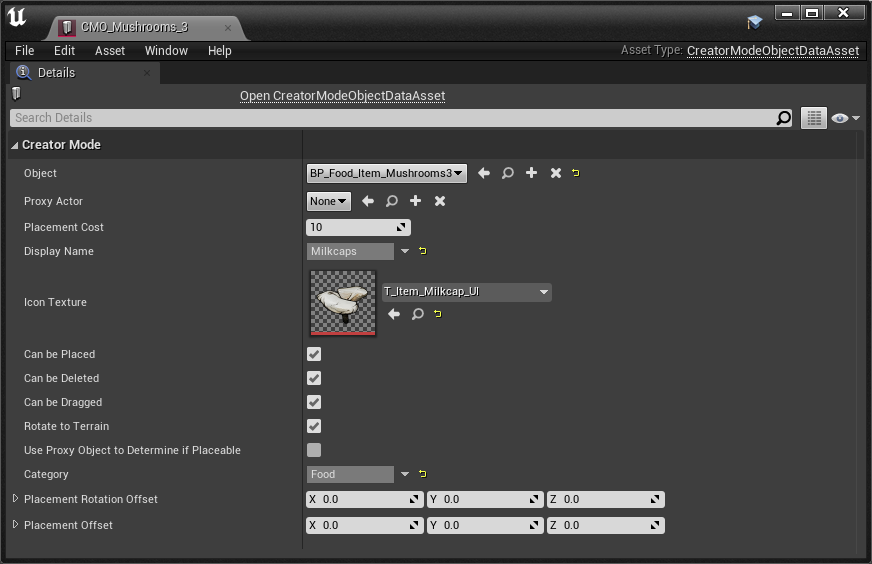
Server hosts can use Creator Mode to place and drag/drop items on their map. If you want Creator Mode to be able to access your new Quest/Food item, you must create and assign a Creator Mode Object.
Tutorial to add Creator Mode Objects
Summary
By following this tutorial you have completed the following:
- Setup base game food/quest items on your map.
- Created your own custom food/quest item.
- Optionally created a Creator Mode Object for your new food/quest item.