Import Creature Mesh and Textures
Once you have properly rigged your character, we can begin importing it. Unreal Engine is extremely particular about the format of your files, so we will go over a few common mistakes that can occur.
Import Mesh
- In your mod folder, create a folder named after your creature.
- Inside this folder drag your creature's FBX into the content browser and import it. Be sure to keep the size of the mesh in mind. This will create 3 files: a Skeletal Mesh, a Skeleton, and a Physics Asset
Rename the 3 files following these naming conventions:
Skeletal Mesh- SK_CreatureNameSkeleton- SKEL_CreatureNamePhysics Asset- PHYS_CreatureName
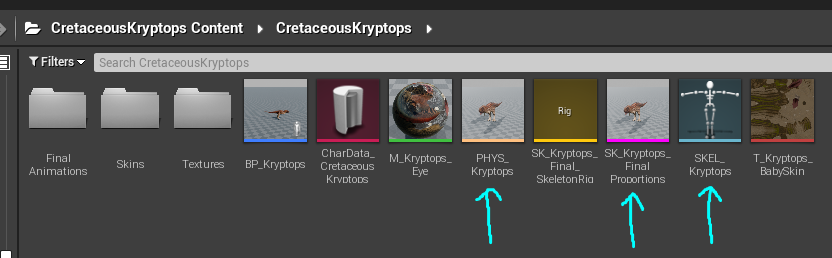
Open the skeletal mesh and inspect the way it has been imported. Please reference the base game dinosaurs for good examples of what your mesh should look like. The following are common problems when importing skeletal meshes:
Common Mesh Problems
| Problem | Information | Solution |
|---|---|---|
| Mesh facing wrong direction | Your mesh must face Y forward. | You can change the direction when importing. |
| Mesh is too big/small | This happens when you scale your mesh too large/small in your 3D modelling software | You can scale the mesh when importing it into the Dev Kit (Import Uniform Scale) |
| Missing bones | Error on import, or your skeleton has just 1 bone. | Have all your bones been exported correctly? Make sure you select all bones when you export your skeleton from your 3D software. |
Many _leaf bones in my skeleton | There are a bunch of extra _leaf bones in your skeleton that don't have any vertexes weighted to them. These are useless and can worsen the performance of your creature for no added benefit and should be removed. | This is a Blender export issue, and you need to uncheck "Export leaf bones" when exporting your mesh out of Blender. |
| Missing Ref/Root bone | Your mesh MUST have a ref or root which connects to your Pelvis bone. | Double-check you are exporting your ref/root bone from your 3D software. If your skeleton does not have one, you need to add one. |
| Too many/too few material slots | Does it have 2/3 material slots? Remember, we only support up to 3 material slots. More information here. | Edit your mesh in your 3D software to use up to 3 material slots. |
| My mesh warps when I bend it | When you bend the limbs do you see any weird warping/skinning issues? | You may need to adjust your weight painting on your mesh in your 3D modelling software. |
There's an extra Armature bone above my Root/Ref bone? | Blender automatically creates an "Armature" for your mesh, and exports it when you export the mesh. This then gets imported into the Dev Kit and is interpreted as a bone. You cannot have this bone in your mesh or else many other issues will arise. | When exporting your mesh from Blender, disable the exporting of the Armature. |
Import Textures
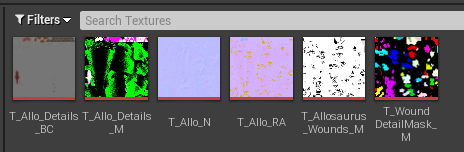
- Within your mod folder, create a folder called
Textures - Import your various textures created in previous steps into this folder.
Summary
By following this tutorial you have:
- Imported your creature's mesh and inspected it for problems
- Imported your creature's base textures.
Congrats! You can now move on to the next step.