Adding Creature Sounds
You can create custom sounds for your creature, including vocal calls, interaction sounds, and growth-blended calls.
When creating your own sounds, you must ensure it is either your original work or a non-copyright sound. Your sounds or audio must not infringe on anyone's copyright, trademark, or other ownership type. Sounds from other popular dinosaur media is not permitted, and if your mod contains any sounds from these it will not be approved until they are removed. You can read more about modding restrictions in the Alderon Games Modding Agreement.
You are free to use any of the audio found within the Path of Titans Dev Kit, including dinosaur calls, interaction sounds, and critter sounds. You are also free to modify any of the sounds so long as you only use them within your Path of Titans mod.
Step 1: Import Your Sounds
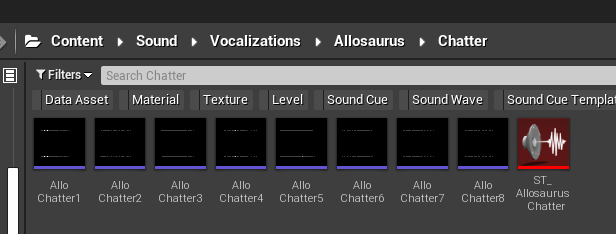
- Within your mod folder, create a folder called "Audio"
- Create any appropriate subfolders to better organize your sounds. For example, a "Threaten" folder where you will place all your creature's threaten call audio files.
- Drag and drop your audio files into the Dev Kit, and they will be imported as a Sound Wave file.
Step 2: Set up Sound Cue Template
- Right click in your sound folder and Select
Sound > Sound Cue Template - This will create a new Sound Cue Template. Name it something appropriate such as
ST_Allosaurus_Threaten - Open the sound cue and slot in the appropriate values.
- Select IGrowthSoundCueTemplate from the list and then "Select"
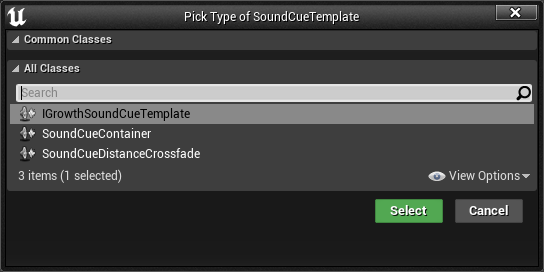
The Sound Cue Template is a composite sound cue that will automatically fade your creature's sounds between Hatchling, Adolescent, and Adult. Note that when you are adding in the sound, they will blend with each other from each slot. This means you want to make sure your Baby and Adult sounds can play together without sounding messy.
The Sound Cue Template can be used for vocal sounds, but also for any other sounds your creature makes, like drinking, swimming, eating, and digging. This lets you have small drinking sounds as a baby, and large sounds as an adult, for example.
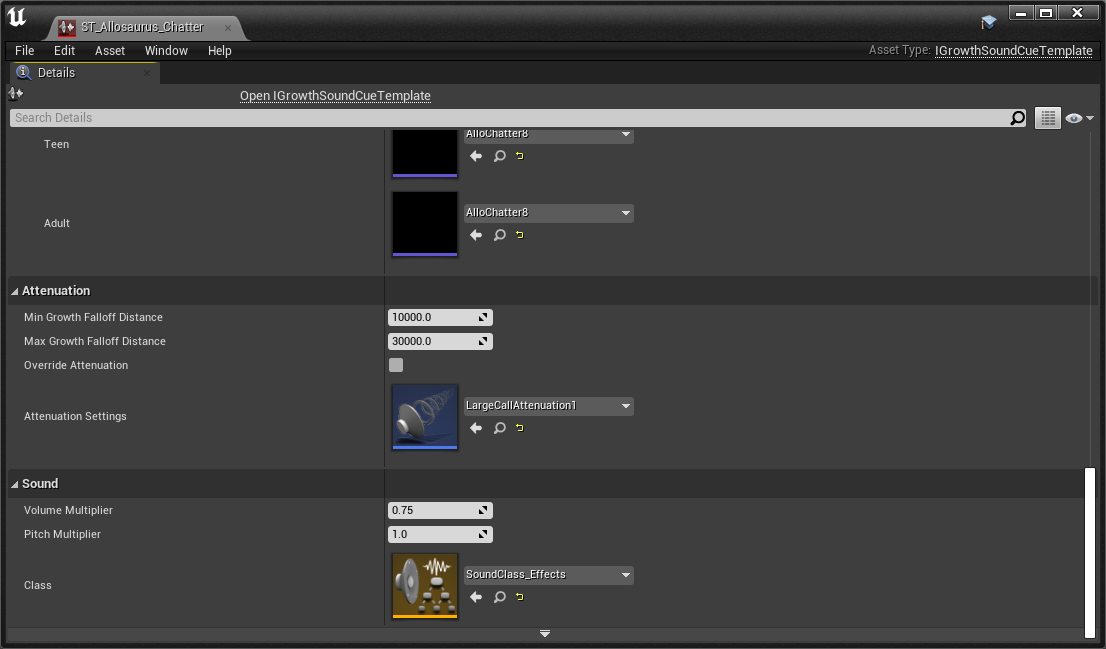
- Click the + button to create an entry in the Sound Cue Template and slot in your creatures sounds into the appropriate growth stages.
- For
Attenuation Settingsyou must assign an attenuation. Generally you will want to use LargeCallAttenuation1 or some other CallAttenuation. - For
Classyou must slot inSoundClass_Effects - Adjust the
Volume Multiplier. Play your sound effect alongside the base game sounds. Base game sounds are somewhat quiet, so make sure to evenly balance your sounds so they aren't out of place.
Step 3: Add Sounds to Animations
Using your Sound Cue Template, you now need to add them to your animations.
TIP
If you retargeted your animations from base game dinosaurs, they will already have sound cues set up in their animations. If this is the case, you can simply swap out the sound cue templates to your preferred template.
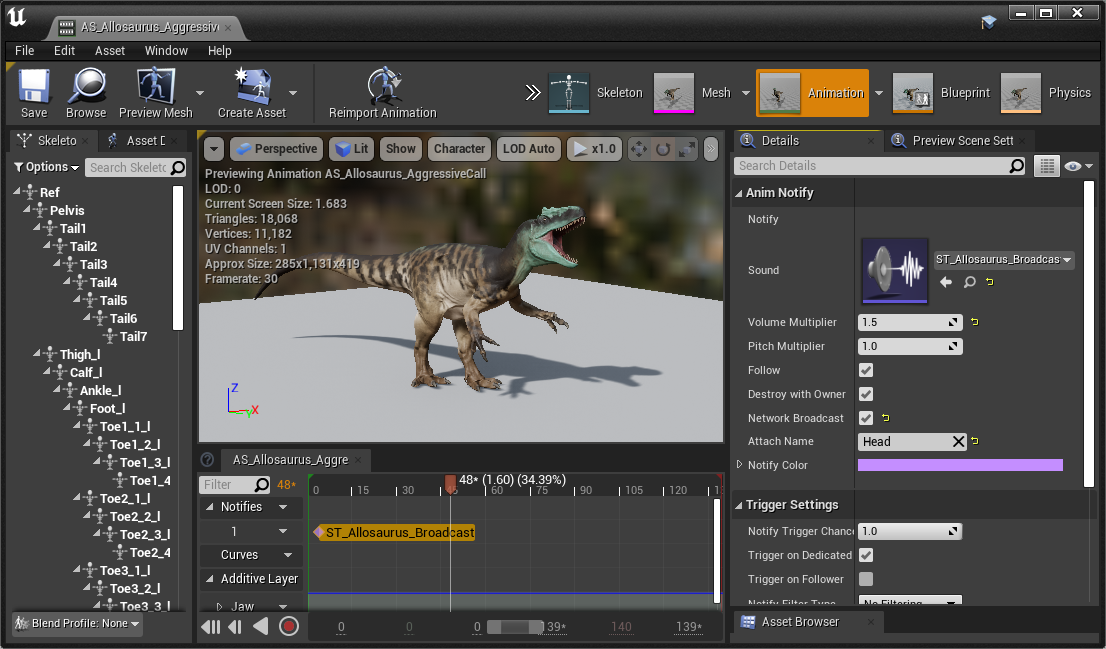
- Open your animation and look at the animation timeline at the bottom of the window.
- Right click on the timeline and select
Add Notify > Play Sound (Advanced) - This will create an empty PlaySoundAdvanced notify. Click on the notify and look at the Details panel on the right.
- Slot in your SoundCueTemplate into the Sound category
- Add a bone name to
AttachNameto make the sound play from that bone. - If your sound is a vocal call, check the
Network Broadcastbox. - Update all your other animations to use the SoundCueTemplates.
Summary
If you followed this tutorial you will have:
- Imported all your audio sounds.
- Created SoundCueTemplates for each type of sound.
- Added sounds to your animations.
Congrats! You can now move on to the next step.