Creating Skin Data Assets
Each skin in Path of Titans is packaged into a single file called a “Skin Data Asset”. Within this Skin Data Asset you must assign your skin masks, colours, name, thumbnail, and more.
WARNING
Once your mod is public you must NEVER rename your skin data assets. If you rename you skin, players that are actively using the skin will attempt to load the old skin that no longer exists and their game will crash. If you want to change the name, change the display name inside the data asset but not the name of the asset itself.
DANGER
Once you have created your Skin DataAssets, you MUST NOT RENAME OR DELETE THEM.
If you rename or delete any DataAsset in the project, you mod will become corrupt and any community server owner who has hosted your mod will now have a corrupt database. You must NEVER RENAME an ability DataAsset, character DataAsset, or skin DataAsset.
If you have accidentally renamed or deleted a DataAsset, you must change the name back to what it was originally, or restore the deleted asset (possibly by creating a new DataAsset with the same name and location as the deleted one), and patch your mod as soon as possible to try and mitigate the damage done to community servers.
TIP
If you need to rename something, instead of changing the DataAsset name, you can change the display name of the item by opening the DataAsset and changing the "Display Name" entry.
If you need to disable something, instead of deleting it or renaming it, you can select the "Disabled" checkbox in the DataAsset. Even after disabling it, you must still leave it there as disabled and cannot ever delete it in the future.
Step 1: Create SkinData Asset
- Right click within your Dinosaur folder and create a new folder called “Skins”
- Within the Skins folder, you should create a new folder named after the name of the skin you are about to import. For example, “Tiger”.
- Within the skin’s folder, import your Base Pattern Mask and Markings Mask textures.
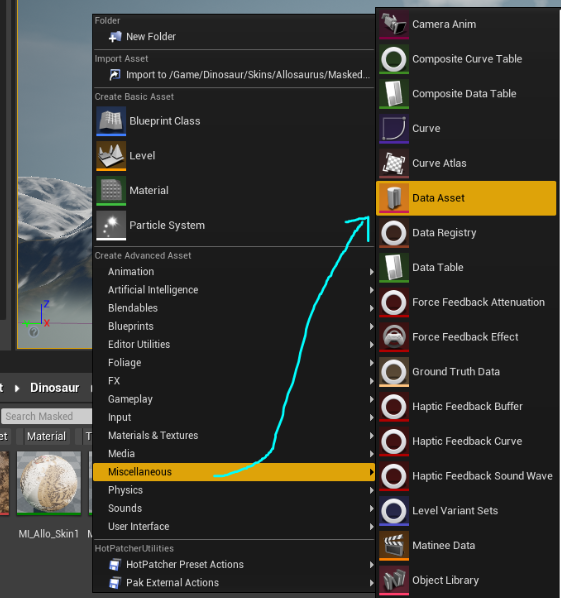
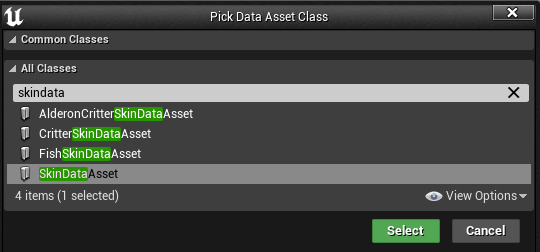
- Right click within your skin’s folder and create a new Data Asset with the class “SkinDataAsset”, and click “Select”
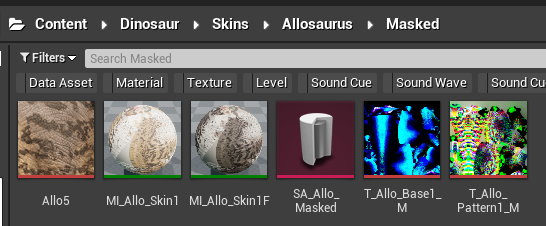
- Name your Data Asset
SA_DinoName_SkinName
Step 2: Edit SkinData Values
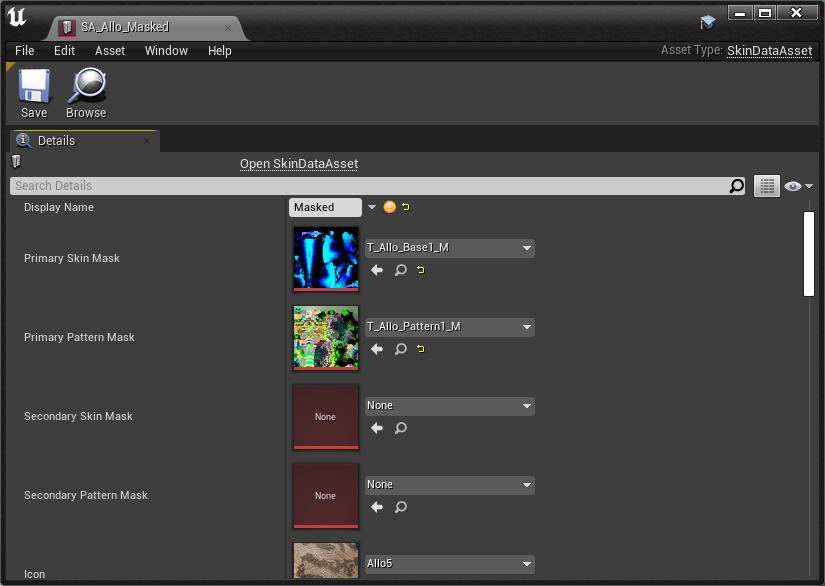
Open the Data Asset and take a look at the parameters. Explanations for all parameters are as follows:
| Variable Name | Description |
|---|---|
Display Name | the name of the skin |
Primary Skin Mask | the base patterns mask texture |
Primary Pattern Mask | the markings mask texture |
Secondary Skin Mask | the base colour texture for feathers if your dinosaur is using feathers |
Secondary Pattern Mask | the markings texture for feathers if your dinosaur is using feathers |
Icon | the skin thumbnail seen in the character creation screen. This should be a 128x128 texture. We suggest putting this icon in the same folder as your skin textures and SkinData. |
Color Types | the entire list of colours that players can choose from for this skin. We only support up to 5 colours. Your skin mod will crash if you do not have all color types, or if you have more/less than 5 colours for each item. |
Color 1 - Color 5 | the colours that your skin will use. Note that you can use different colours between male and female. TIP: you can right click > copy an entire column of colours between data assets to speed up colour setup. |
Color 6 (Eye Color) | The eye color of your dinosaur. |
Color 7 (Detail Tint) | The tint that is applied to areas like the claws, mouth, and teeth. This is 1 colour that cannot be edited by the player so make sure it matches the general tone of the skin regardless of colour selected. |
Skin Category | You must select “Normal Skin”, all other options will cause your skin to not work. |
Required Entitlement | you must leave this blank or else your skin will not work. |
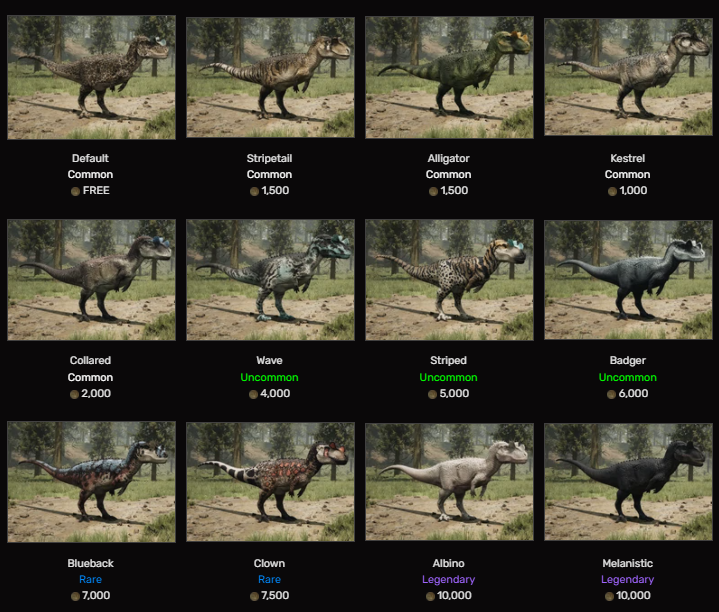
Skin Rarity | the designated rarity of this skin. |
Default Skin | this will designate this skin as a default skin, causing it to always be unlocked. |
Purchase Cost Marks | the amount of marks it costs to first unlock this skin |
Upgrade Cost Marks | the amount of marks it costs to upgrade the skin to reach new colours. Base game uses 150 marks. |
Max Upgrade Level | the number of levels this skin can be upgraded to. Default is 5. |
Buy Image | not used, leave this empty. |
Preview Image | not used, leave this empty. |
Character Asset ID | You must assign your CharacterData Asset for your creature here. |
Here are some example values for Skin Rarity and Purchase Cost Marks.
Summary
By following this tutorial you should have the following:
- Your imported Base Pattern Mask and Markings Mask textures.
- A SkinData asset with all the variables assigned.
- A 128x128 preview icon for the skin