Assigning and Balancing Stats
Path of Titans character use the Gameplay Ability System, which allows you to edit stats in a spreadsheet dynamically instead of plugging in hardcoded values. This means that stats are highly flexible and can be changed at runtime via server configurations.
Before You Begin
Before you can setup stats you must have already:
- Created your creatures Blueprint
- Create your creatures CharData asset
- Assign your creatures BP into its CharData asset. Make sure they use the same dinosaur naming scheme (Ex. CharData_MyDinosaur and BP_MyDinosaur)
The naming of your creature must be extremely specific. The Blueprint, CharData, Abilities, and Stats must all use the exact same name and spelling. For example, if you were to add a Tyrannosaurus every item must be called "Tyrannosaurus". You cannot name the Blueprint "Trex", the CharData "T_Rex", and the Abilities "Tyranno". They must all be exactly the same with the same capitalization.
Step 1: Use AbilityEdtior to Base Create Stats
- Open the AbilityEditor. Learn how to use the AbilityEditor here.
- Select your creature from the dropdown menu.
- Click “Fix” to create the stat tables and CSV files
TIP
The stat files will be created INSIDE the Content folder, NOT your mod folder.
This will assign default stats to your creature.
Step 2: Editing Stats
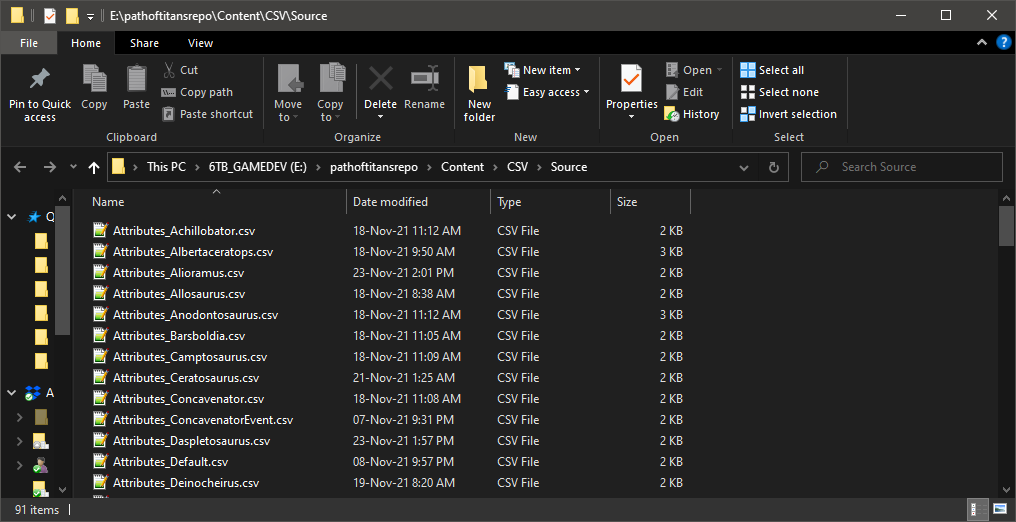
To edit your stats, you must edit the .CSV file that was generated when you created the base stats with the AbilityEditor.
- Go to
Content\CSV\and right click on the "Source" folder. - Select "Show in Explorer" to open the folder in Windows Explorer.
- Within this folder, you will find 3 stat files that correspond to your creature:
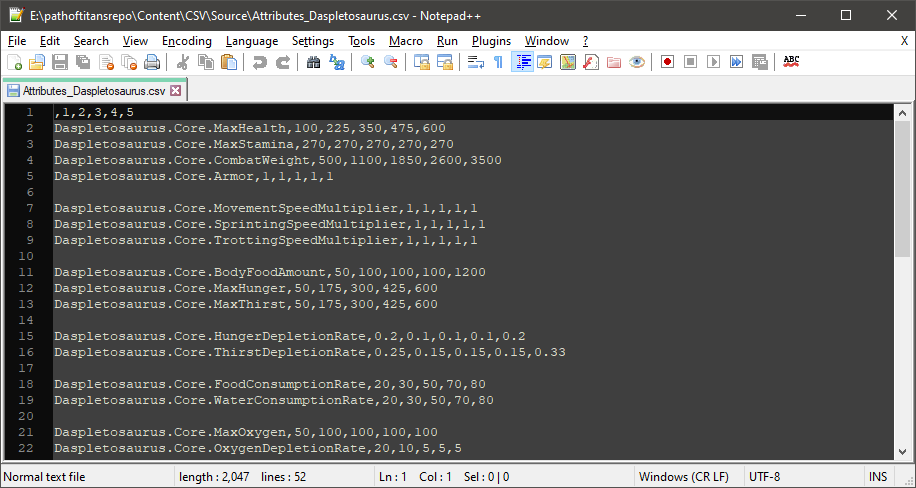
Attributes_CreatureName.csvCombat_CreatureName.csvandMultipliers_CreatureName.csv - Open each file with a text editor such as Notepad or Notepad++
- Here you can edit the stats of your creature. We highly suggest referencing base game dinosaurs to get started. For example, if you were modding in a Tarbosaurus, you might want to reference Daspletosaurus stats to get a baseline balance.
- After editing your stats, you must save the file and reimport it into the Dev Kit. You can do this by dragging and dropping the 3 .csv files from Windows Explorer into the
Content\CSV\folder in the Dev Kit. This will automatically reimport the files.
Summary
By following this tutorial you will have:
- Created
Attributes_CreatureName.csvCombat_CreatureName.csvandMultipliers_CreatureName.csv - Automatically assigned these stat files to your creatures blueprint.
- Input custom stats and reimported them into the dev kit.
Congrats! You can now move on to the next step. Back to tutorial.