Setup Your Creature Blueprint
In order to make your creature playable, you must create a Character Blueprint and fill in the appropriate values.
Step 1 - Duplicate a Base Game Dinosaur Blueprint
In order to save time and make this less complicated, we will duplicate a base game dinosaur blueprint that most closely resembles your modded creature.
- Go to
Content\Blueprints\Characters\Dinosaurs - Look through the blueprints in this folder and find the dinosaur that most closely resembles your modded creature. For example, if you were modding in Tarbosaurus, you might want to look for the Daspletosaurus blueprint.
- Right-click on your selected blueprint and choose
Duplicate - Rename the blueprint
BP_CreatureName
WARNING
The name you use for your blueprint MUST BE EXACTLY THE SAME as the name used everywhere else in your mod.
- Move the blueprint from the
Contentfolder into your mod folder, at the locationModName\CreatureName\
Step 2 - Setup Creature Blueprint
Now, we must edit all the variables found inside your blueprint to use custom assets and values. This is a long list of items, so we suggest going through the list below and editing everything one-at-a-time. In order for your creature to be fully functional, you must edit every single item displayed below!
DANGER
If a variable is not listed here, it means it is either unused or should be left as defaults!
When you first open your blueprint, you will see a list of items in the "Components" window. Click on each item and adjust the values found the the "Details" panel on the right. The name of the component will correspond with the tables below!
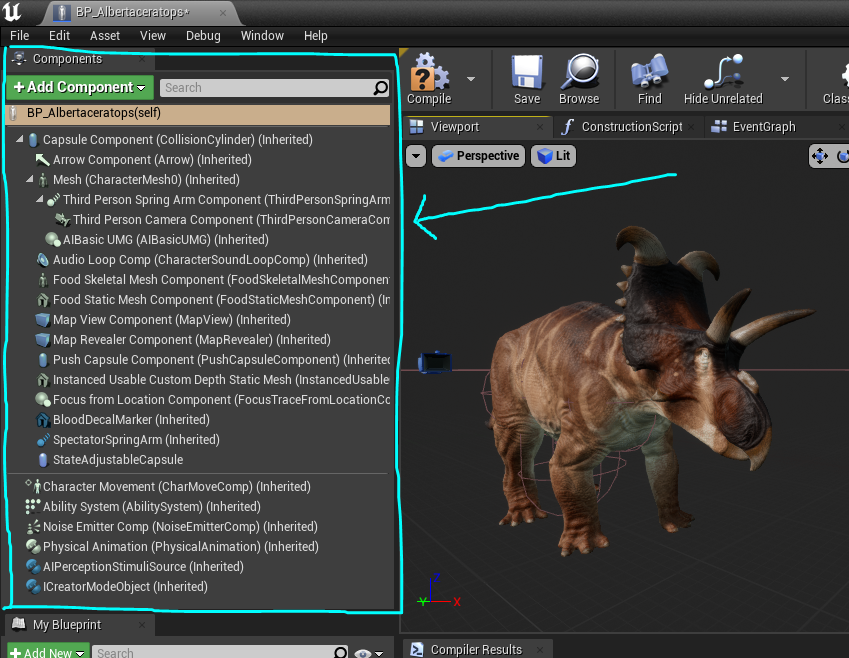
BP_CreatureName(self)
| Variable | Description |
|---|---|
| Camera Zoom In Location | The location your camera will be when fully zoomed in. |
| Camera Zoom Out Location | The location your camera will be when fully zoomed out. |
| Camera Crouch Location Offset | The amount your camera will dip when your creature crouches. |
| Camera Distance Range | The distance your camera can zoom in/out. |
| Enable New Camera System | MUST BE CHECKED ON! |
| Vocal Wheel Items | Add an entry for each vocal call your creature has. You must slot in an animation montage, icon, and assign a Tag. Use the following tags: Broadcast Friendly Threaten Help Generic Extra5 Extra6 Extra7 Extra8 and InviteNearestPlayer. INFO: InviteNearestPlayer Will be used for the 'invite nearest player to your group' mechanic. Please ENSURE you have this assigned or else players won't be able to use this extremely important mechanic. |
| Eat Anim Montages | Add an entry for each eating type your creature can do. You must slot in an eating animation, eating while swimming animation, swallowing animation, and swallowing while swimming animation. You must also assign the eating Name: Default Dig EatLow EatHigh BurrowDig or EatMeat. INFO: When your creature interacts with an item, it will play the eating animation based on this Name tag. For example, eating roots will play the Dig animation. If your creature does not have a Dig tag, but tries to eat roots, it will fallback to the Default eating animation. |
| Allow Eat While Swimming | Allows your creature to eat while swimming. Highly recommended for aquatic or semi-aquatic creatures. |
| Drink Anim Montage | Your drinking animation. |
| Space Needed to Dive | Space needed below your creature to dive. |
| Space Needed to Float | Space needed above your creature to float at water surface. |
| Max Focus Target Distance | The max range your creature can reach items. |
| Sound Take Hit | Sound your creature makes when it gets hurt. Make sure you use a SoundCueTemplate that can scale with growth. |
| Sound Death | Sound your creature makes when it dies. |
| Head Bone Name | If your creature has a head bone that isn't named "Head" put the name here. |
| Damage Bodies | See here for full description. |
| Growth Anim Threshold Scale Min | The speed your movement animations play as a baby. You will likely have to fiddle with this number to get your baby creature to not slide. Suggested value is between 0.5 - 0.25 |
| Speed Growth Scale Min | The speed your baby will run compared to the adult. For example 0.5 means your baby will run half as fast as the adult. |
| Swim Speed Growth Scale Min | The speed your baby will swim compared to the adult. |
| Acceleration Growth Scale Min | Increases the acceleration your baby creature has so it feels more snappy. |
| Scale Growth Min | The minimum size your creature will be when it's a hatchling. |
| Player Start Tag | When spawning your creature, it will first look for a spawn point that has this Tag. If it can't find a spawn point with this tag, it will choose a random spawn point. This is useful if you want to spawn your creature in certain areas. For example, you can assign the Aquatic tag so your creature always spawns near water. |
| Blood Mask Source | The Wound Location Mask texture you created earlier in this tutorial. |
| Bone Name to Wound Category | Assign bone names to the different wound areas. If your creature uses the same skeleton/bone names as our base creatures, you can probably leave this as defaults. If you have a custom skeleton/bones, you must approximate your bone names into this list. For example, a bone called Claw_Left would go into "Left Hand", or a bone called RightCalf_Upper would go into "Right Leg". |
| Character Data Asset ID | Slot in your CharData asset here. Tutorial to make CharData Asset here. |
| Character Tag | You must assign a character tag named exactly as your creature. If this is not already assigned, add one by doing the following: Edit > Character > Click the + next to Character and type in the name of your creature. IT MUST BE EXACTLY THE SAME AS YOUR CHARDATA, BLUEPRINT, ETC. |
| Default Home Cave Base Room | If you are creating an extremely large creature, or a creature that will not fit into a standard home cave, you can add a custom home cave asset here. |
| Max Carriable Size | The maximum meat chunk size your creature can carry. |
| Slotted Ability Assets Array | When your character spawns, it will start with these abilities. Please ensure these abilities have "Default" checked ON in their DataAsset, or else the player could accidentally unequip them and not be able to equip them again. |
| Slotted Ability Categories | Spawns your character with these abilities automatically slotted into the hotbar. If there are any attacks/usable abilities your creature spawns with, add the category here. |
| Ability Slot Configuration | Specified the ability slots your creature can use, and what growth stage it must reach to use the ability. Add an entry under each ability category, and specify the growth stage it must reach. 0 0.25 0.5 0.75 or 1 |
| Footprints | Footprint setup tutorial here. |
Capsule Component
| Variable | Description |
|---|---|
| Capsule Half Height | The height of your capsule. You should adjust this to be the approximate height of your creature when idling. Once you edit this value, you will have to re-align your creature mesh to the bottom of the capsule. You can do this by opening the Blueprint Viewport, going into Left view mode, and changing it to wireframe. From there, you can move your mesh down so its feet are at the same level as the bottom of the capsule. 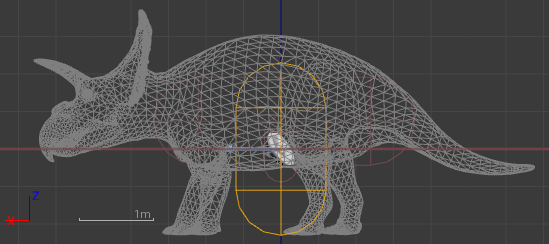 |
| Capsule Radius | The radius of the capsule. Make sure this is the approximate width of your creature. |
Mesh (CharacterMesh)
| Variable | Description |
|---|---|
| AnimClass | Your creature's animation blueprint, from this step earlier in the tutorial. |
| Skeletal Mesh | The mesh of your creature. |
| Materials | Make sure this is set to default, which will be the materials used on your skeletal mesh. |
State Adjustable Capsule
This is the secondary capsule used to give your character additional collision across its body. Because dinosaurs are often quite long, they require a longer hitbox than the standard vertical capsule. You must also adjust the collision based on the movement state of the dinosaur (sitting, swimming, sleeping, etc.)
| Variable | Description |
|---|---|
| Scale | Change the size of the capsule (will be used across all capsule states). |
| Configurations | The location, scale, and rotation of the collision capsule when the creature enters each state. For example, when your creature sleeps, you can lower the capsule to better reflect the shape of the creature laying on the ground. |
| Debug State Shapes | DEV TIP: Use this debug tool to see what the shape of the capsule is in each state (above). BE SURE TO SET IT BACK TO (NO FLAGS SET) WHEN YOU ARE DONE! 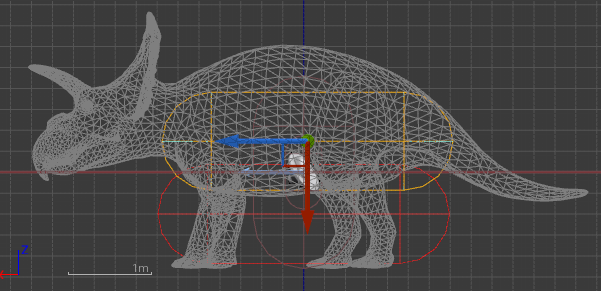 |
Character Movement (CharMoveComp)
| Variable | Description |
|---|---|
| Footstep FX | Tutorial found here. |
| Can Use Precise Navigation | Enable/Disable your creature using precise movement. Highly suggested to check this ON, however if you do not have all the animations required for sidestepping, reversing, etc. you can turn this off. |
| Can Use Precise Swimming | Allows your character to dive underwater. |
| Can Use Advanced Swimming | Must be checked ON! |
| Max Trot Speed | Maximum speed when trotting. |
| Max Run Speed | Maximum speed when sprinting. |
| Max Walk Speed | Maximum speed when walking. |
| Max Walk Speed Crouched | Speed when crouching and walking forward. |
| Max Swim Slow Speed | Speed when swimming forward normally. |
| Max Swim Acceleration | Amount of acceleration when swimming forward. |
| Max Swim Speed | Speed when sprinting while swimming. |
| Max Walk Reverse Speed | Speed when using precise movement to walk backwards. |
| Max Walk Strafe Speed | Speed when using precise movement to strafe sideways. |
| Max Crouch Reverse Speed | Speed when using precise movement to walk backwards while crouching. |
| Max Crouch Strafe Speed | Speed when using precise movement to strafe sideways while crouching. |
| Crouch Speed Rotation Rate | Turning radius when you are crouching. |
| Walk Speed Rotation Rate | Turning radius when you are walking forward. |
| Trot Speed Rotation Rate | Turning radius when you are trotting forward. |
| Run Speed Rotation Rate | Turning radius when you are sprinting forward. |
| Swim Speed Rotation Rate | Turning radius when you are swimming. |
| Turn in Place Standing Rotation Rate | Turning radius when you are using precise movement to pivot on the spot. |
| Turn in Place Crouched Rotation Rate | Turning radius when you are using precise movement to pivot on the spot while crouched. |
| Precise Movement Stand Rotation Rate | Turning radius when you are using precise movement to move or strafe. |
| Precise Movement Crouched Rotation Rate | Turning radius when you are using precise movement to move or strafe while crouched. |
| Jump Z Velocity | The upwards velocity of your dino when it jumps. This is also modified in the JumpForceMultiplier stat in your creatures Attributes_CreatureName.csv file. |
Ability System (AbilitySystem)
| Variable | Description |
|---|---|
| Bone Damage Multiplier | Changes the amount of damage applied to your character based on what bone was hit. If your creature uses the same skeleton/bone names as our base creatures, you can probably leave this as defaults. If you have a custom skeleton/bones, you must add your bone names into this list and assign their values. |
| State Effects | These should automatically be assigned if you follow this upcoming tutorial step. It should eventually look something like "Resting : GE_Resting_CreatureName" |
| Mesh Effects | Allows you to assign custom subspecies stats. The order here is directly linked to the Subspecies order found in your CharData. For example, if your speedy Subspecies is in slot 2 of your CharData Subspecies section, you must assign the speed increasing GE into slot 2 of the Mesh Effects section. If you do not want custom subspecies stats, leave these empty. |